Subject tags are used as an alternative way to label your participants. If your study tracks participants by an identifier other than the URSI number, you can use this feature to document the link between the URSI and the other identifier. Participants can be looked up by either URSI or Subject Tag in most places. You are not required to have a Subject Tag to enroll or look up a participant.
Query Builder can be used to export the tag and URSI together for cross referencing. The following steps can be followed to export the data.
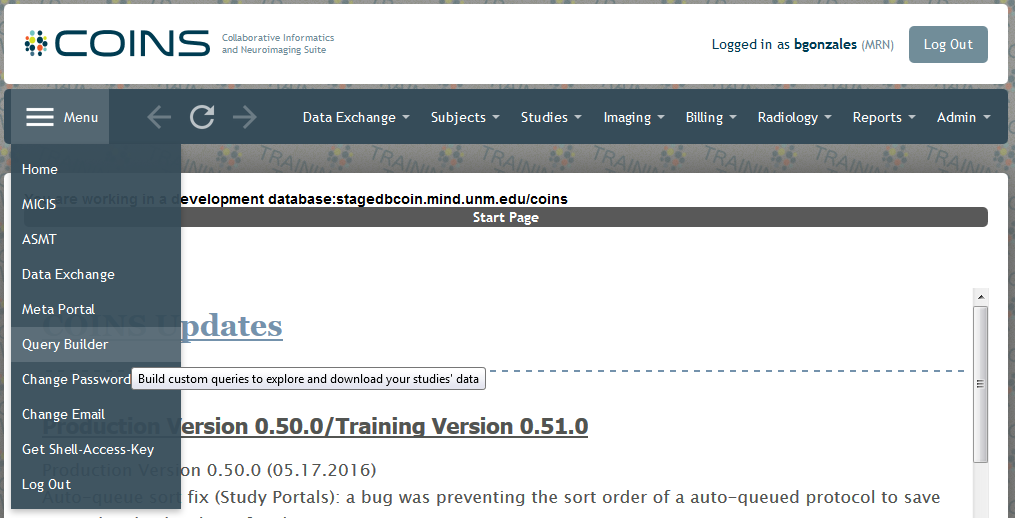
- Navigate to Query Builder using the main menu.
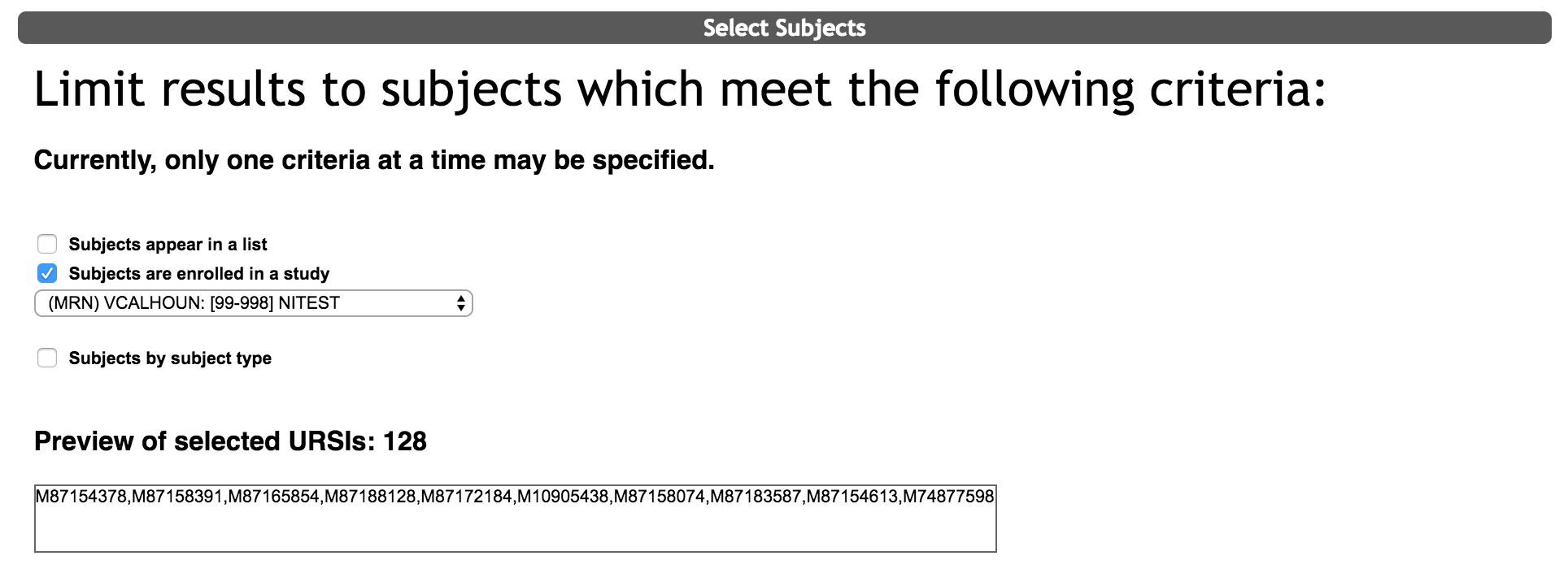
- Once in Query Builder, under Select Subjects choose to either provide a list of URSIs, export all participants from a study, or select a subject type.
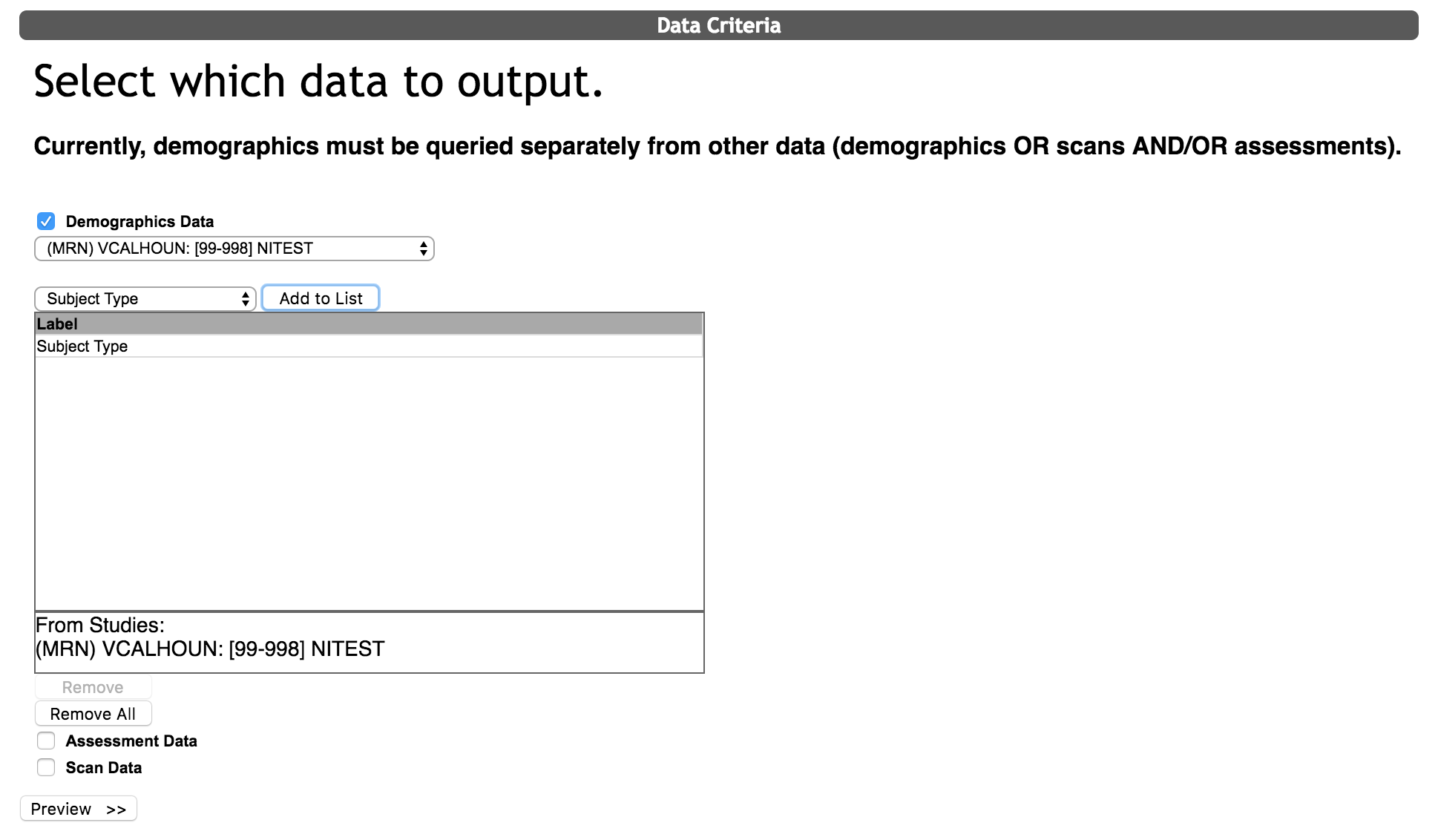
- Under Data Criteria, choose from either demographics, assessments, or scans. For the purpose of easily getting the URSI to tag link, select Demographic Data and choose a criteria from the drop down. In this example, Subject Type was chosen, but any of the options will work.
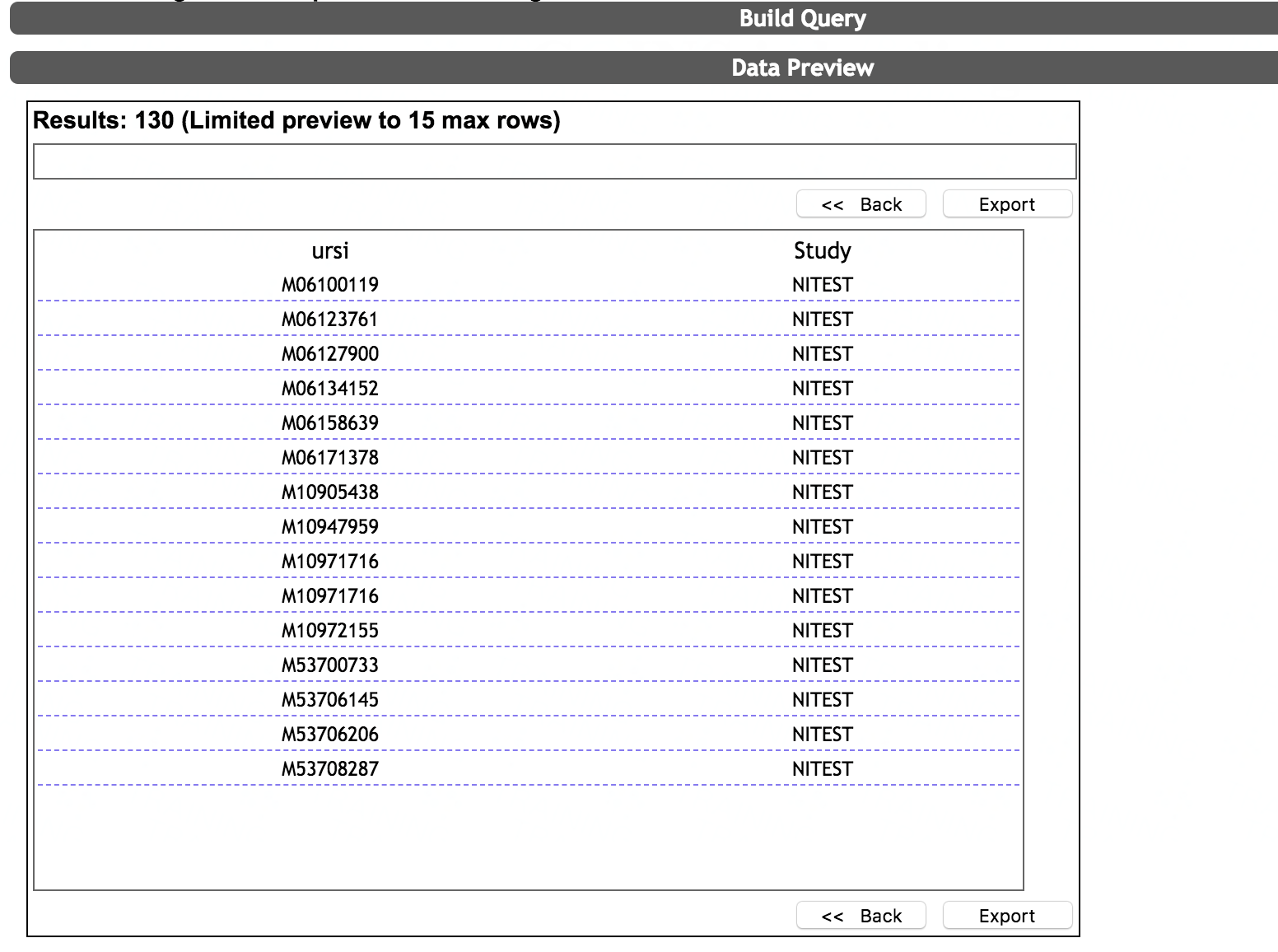
- Click Preview>> to continue. This will take you to the Data Preview. Click Export to continue.
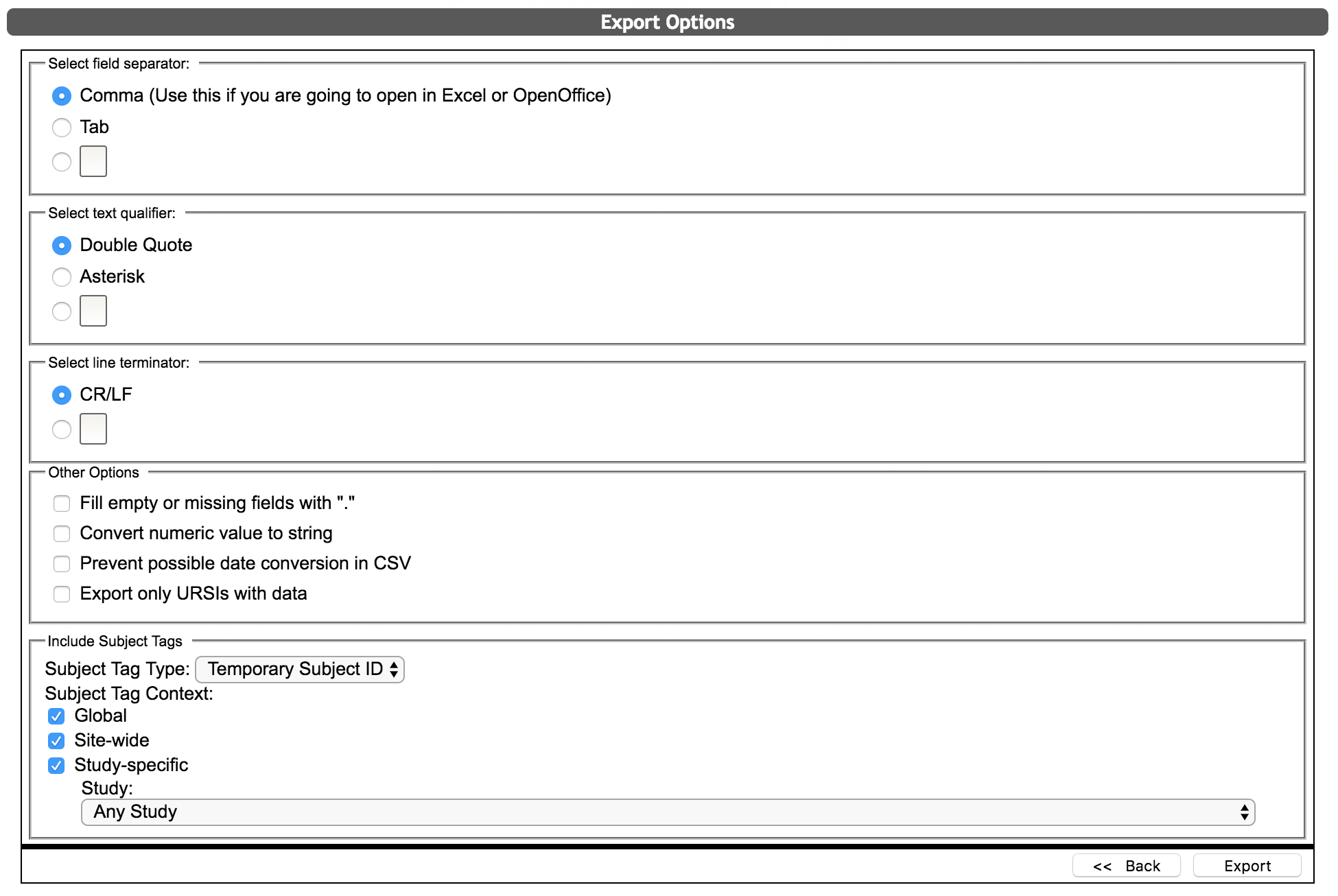
- Choose the file type that should be exported at the top of the page under Select field separator. For the last option, Include Subject Tags, choose which tag type and context to export. All other options do not need to be changed, but can be if desired. Click Export to download the file.
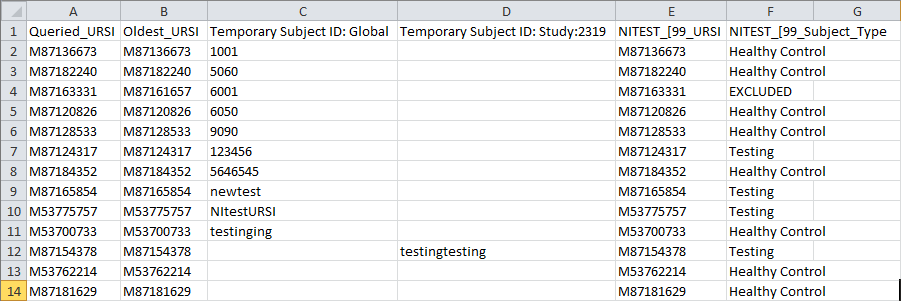
The resulting file should look similar to this:
Comments