A participant's details as well as scan and assessment data can be viewed and updated after a participant has been looked up from the Subject page. The tables on this page have many built-in features to help users customize and retrieve table information.
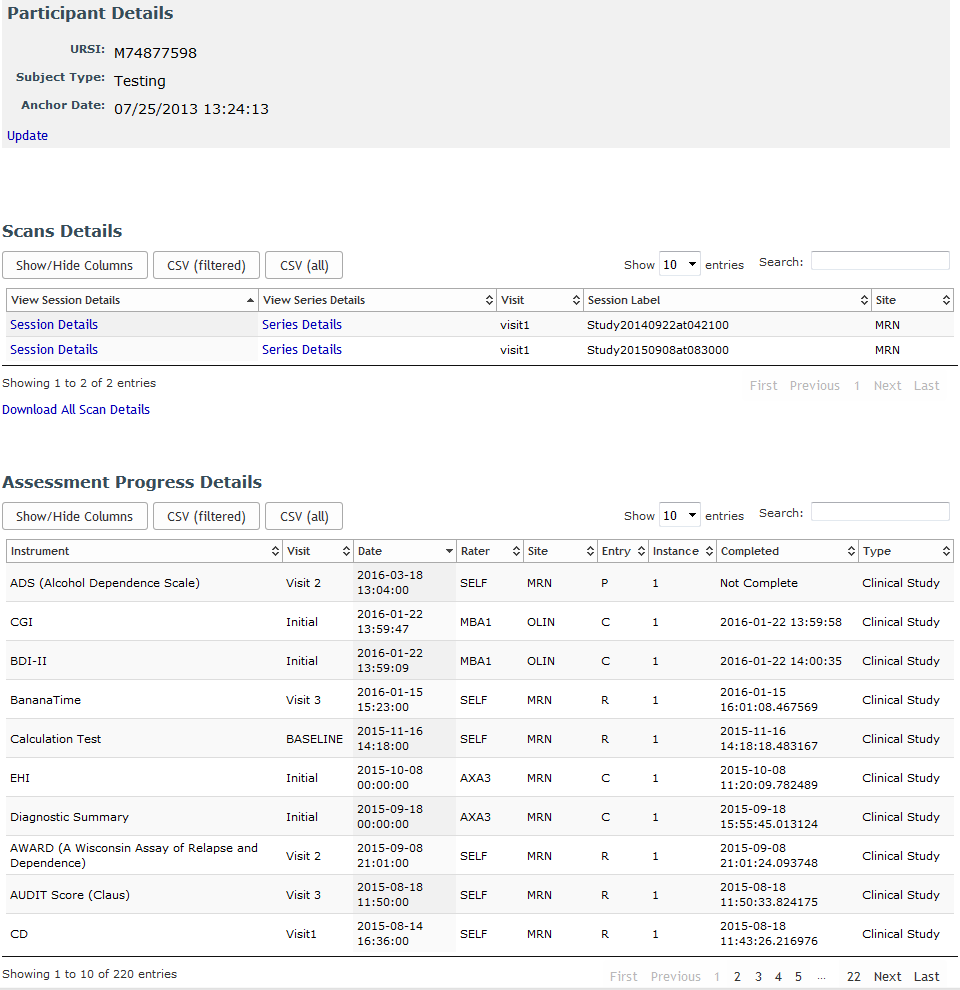
Participant Details
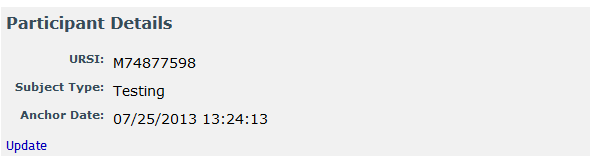
Details for the participant will be listed. Their basic details can be updated by clicking Update.

Study enrollment for the participant that the user has access to will be listed here. Click Change to update information.
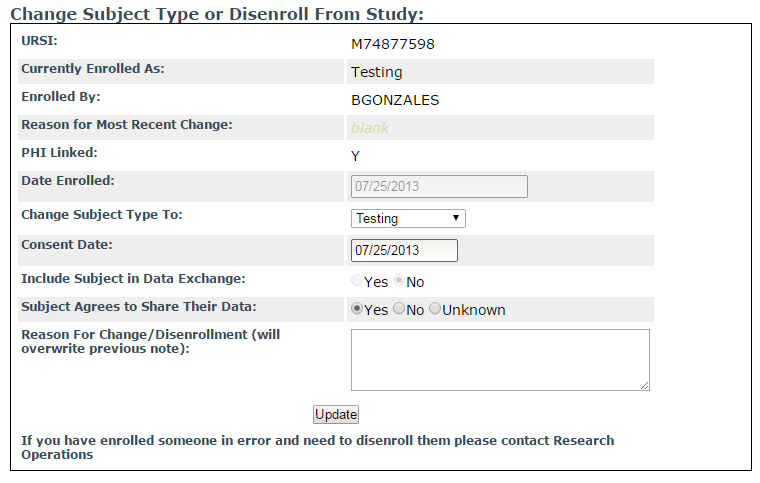
Update any necessary information. Click Update to save the new information. Users with site admin permissions and above will also have the ability to disenroll someone from this page.
Scan Details
Scans for the selected participant will be listed here.
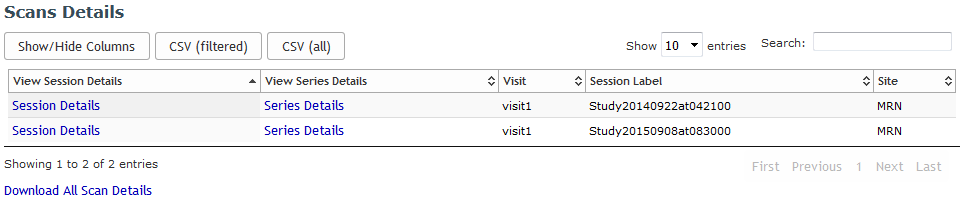
To download scan details, click Download All Scan Details. To view and update Session Details, click Session Details.
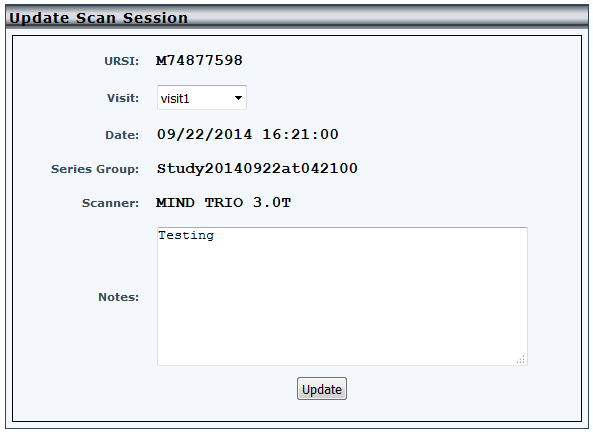
After updating any notes or changing the visit, click Update to save the changes.
You can also click Series Details to view and update information for each scan series.
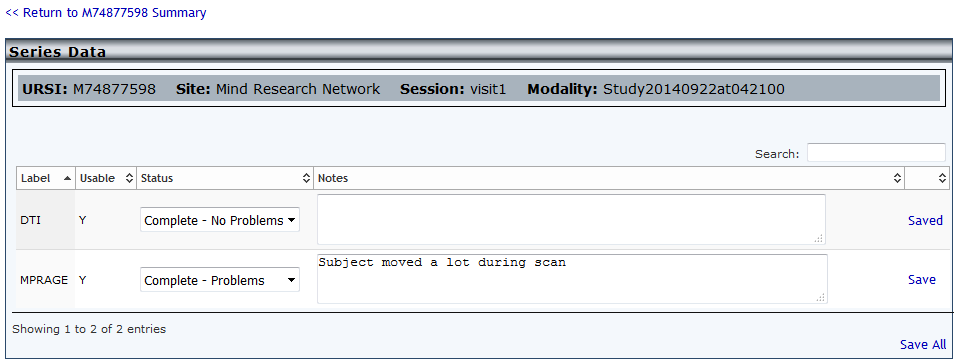
Save to update a single row or Save All to update multiple rows. Rows that have been saved will be labeled with "Saved".
Click <<Return to [URSI] Summary to go back to the details page.
Assessment Progress Details
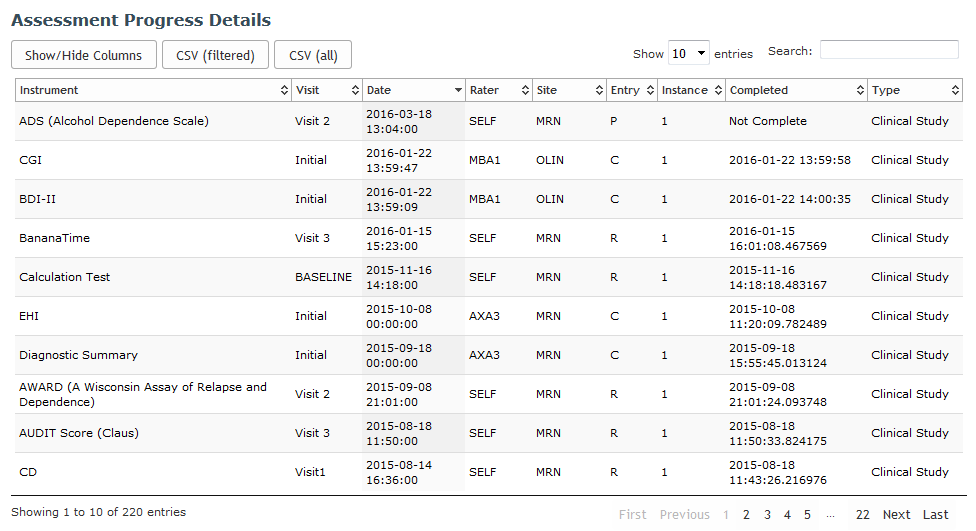
Under this section of the details page will be a list of all assessments for the participant. This will include assessments of all entry types, not just clinical. This helps to give a complete view of all assessments that have been entered or administered for the selected participant.
Comments