Upon navigating to a Study Portal, on home page you will see a list of contact information for staff added to the study. This will be the study's raters or others who have been manually added. The Study Portal Contact table has many built-in features to help you customize and retrieve needed information.
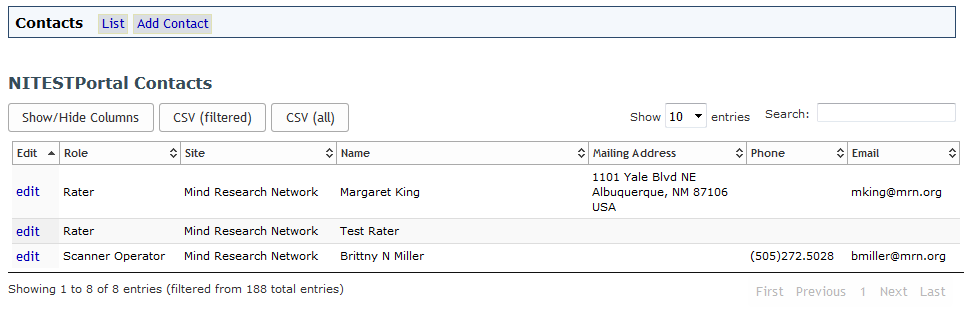
You can return to this list at any time by clicking Home from the Menu bar. To manually add someone who is not on the list, click Add Contact.
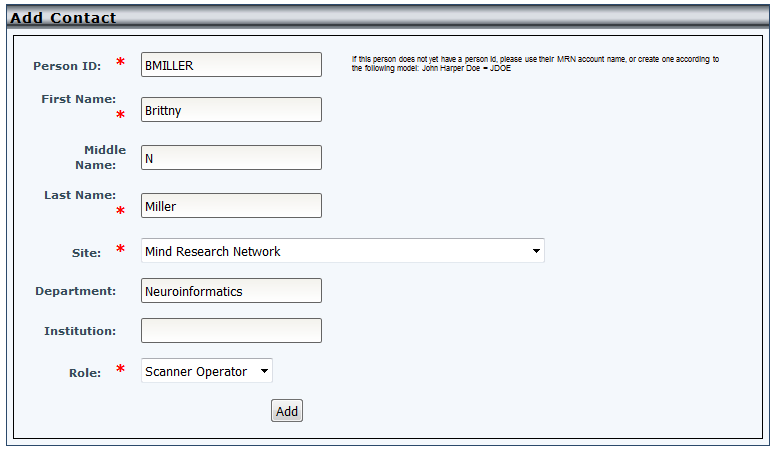
Complete the necessary information and click Add. If the database detects any matches, you'll be asked to confirm if the contact being added does not already exist.

Choose an existing contact or that it is not a match and click Continue.
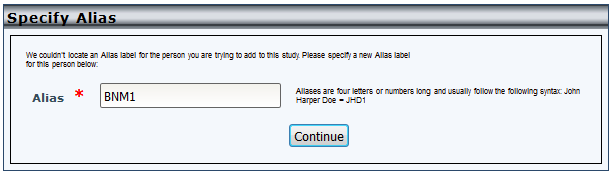
If the contact is new you'll be asked to provide an alias for the them. This should only be four characters long and be alphanumeric. Click Continue to add the contact.
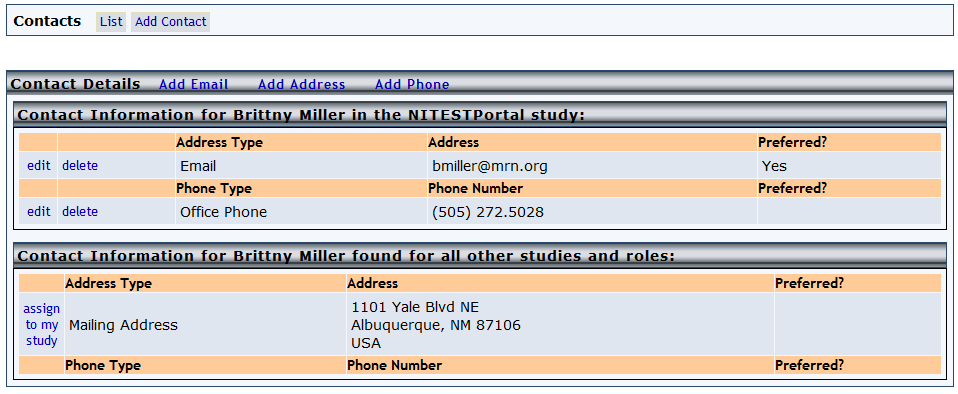
After adding a contact or after clicking edit next a contact, you will see contact information for the study contact, as well as any information that exists for them in the database for other studies. If the contact information exists for your study, you can change or remove the information by clicking edit or delete. If contact information exists for the study member but in another study, you can click assign to my study to add the information to your study portal. To add information to the contact click Add Email, Add Address or Add Phone. At any time, click List from the contact menu to return to the list of contacts or Add Contact to add more study staff.
Comments