Subject types are useful for study planning, organization and data sharing. They are also necessary if you plan on using the Progress Report in the study portal.
Subject types can be changed through MICIS or through Study Portals.
MICIS
In MICIS, find the study you want to add or edit subject types for in the List Studies section which is in the Studies menu. Click here for more information about how to find studies using the List Studies option.
In the Studies Detail Menu, click Subject Types at the top of the page.

From here you can edit existing labels by clicking Edit or create new labels by completing the Add Subject Type information at the bottom.
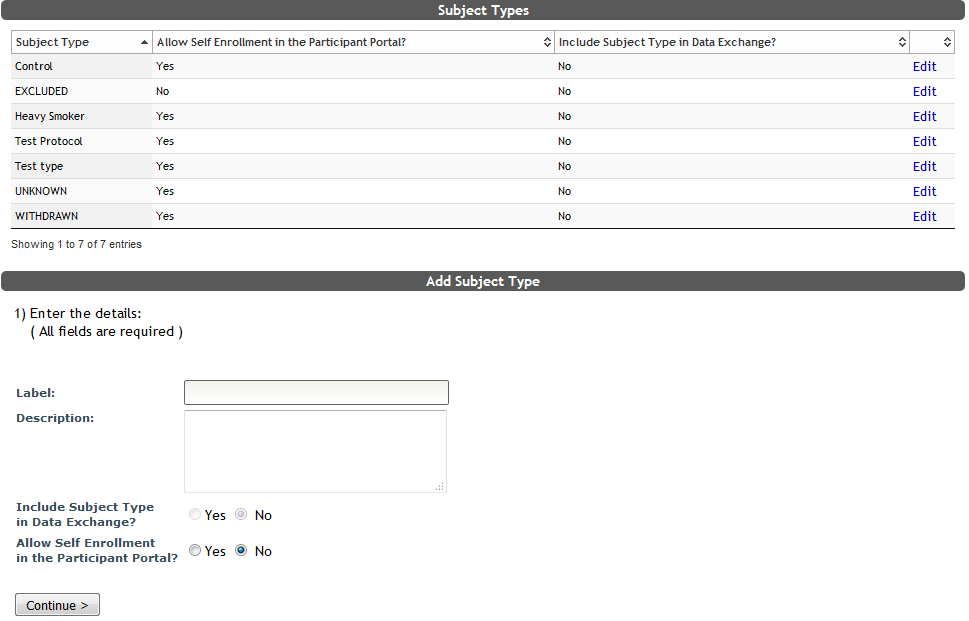
Add a new Subject Type
To add a new subject type, complete the Add Subject Type information:
- Label - name of the Subject Type
- Description - optional description of the new type
- Include Subject Type in Data Exchange? - choose if this type should be included or excluded from Data Exchange
- Allow Self Enrollment in the Participant Portal? - Does this subject type allow for Participant Portal self enrollment
Once you have completed these fields, click Continue> to add the new type. You will be prompted that the new Subject Type has been added and it will appear in the list.
Editing/Hiding Existing Subject Types
Labels cannot be deleted, but they can be hidden. To change or hide an existing label, click Edit next to the label you want to change or hide.

From here you can change the Study Type label name, descriptions, if the subject type is included in Data Exchange as well as if this data type is allowed to Self Enroll in Participant Portal (Self Assessment). You can even change and hide the default Subject Types.
If you want to hide the label from appearing when enrolling or changing subject types, check the Hidden box. Subjects that are in this hidden type will remain in this type until they have been changed, but new subjects and existing subjects will not be allowed to change to this type.
To unhide a subject type, uncheck the Hidden box.
Click Continue> to update your type.
Study Portals
To change or add Subject Types through Study Portals, go to the study's Portal and click Subjects.
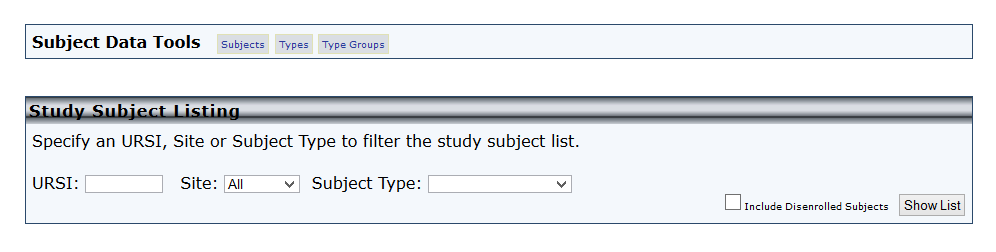
From the Subject menu, choose, Types in the Subject Data Tools menu.
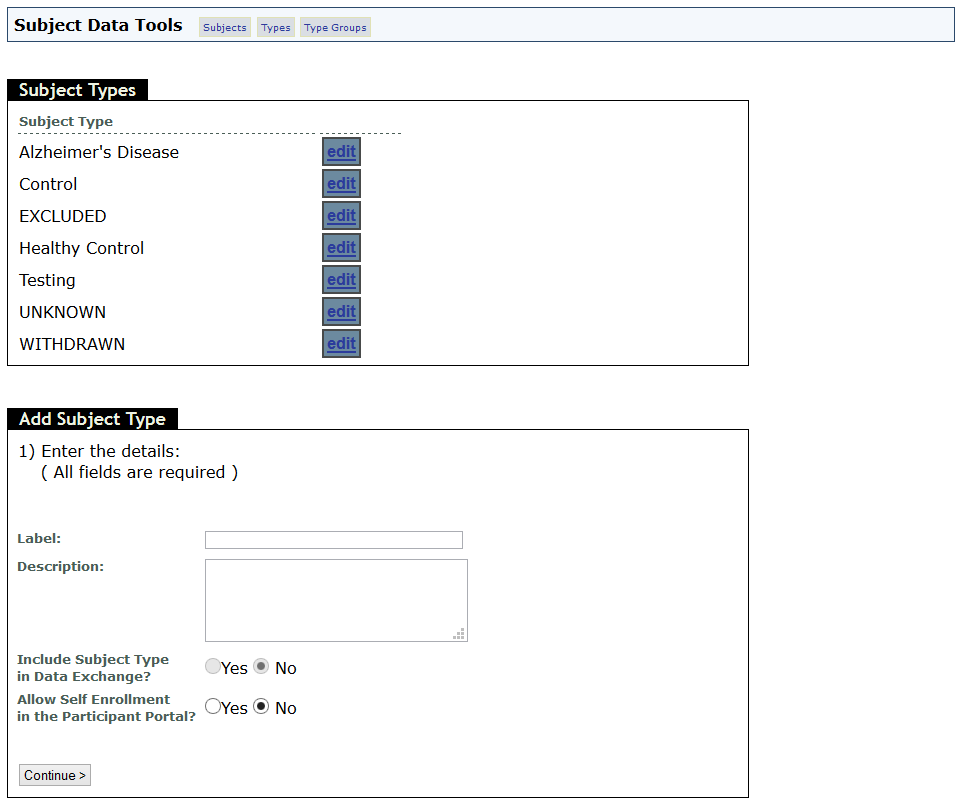
From here you can follow the directions above to edit, hide and add Subject Types.
How do I delete a subject type?
Subject Types cannot be deleted from the front end. We recommend hiding any you do not want to use. Once hidden, the type will no longer be available to assign to subjects.