To access the radiology worklist for completed scans, click Completed Reviews from the Radiology menu.

Use the filter criteria to find specific reviews. The filter options include:
- URSI
- Study Name - select a study from the drop down list
- Review Date - date range the scan was reviewed by the radiologist in "mm/dd/yyyy" format
- Scan Date - date range the scan was performed in "mm/dd/yyyy" format
- Site - select from the drop down list
- Scanner - select from the drop down list
- Recommendation - select from the drop down list
- Radiologist - select from the drop down list
Click Apply to see a list of radiology reviews that meet your selected criteria. Click Apply with no filter settings to get all readings.
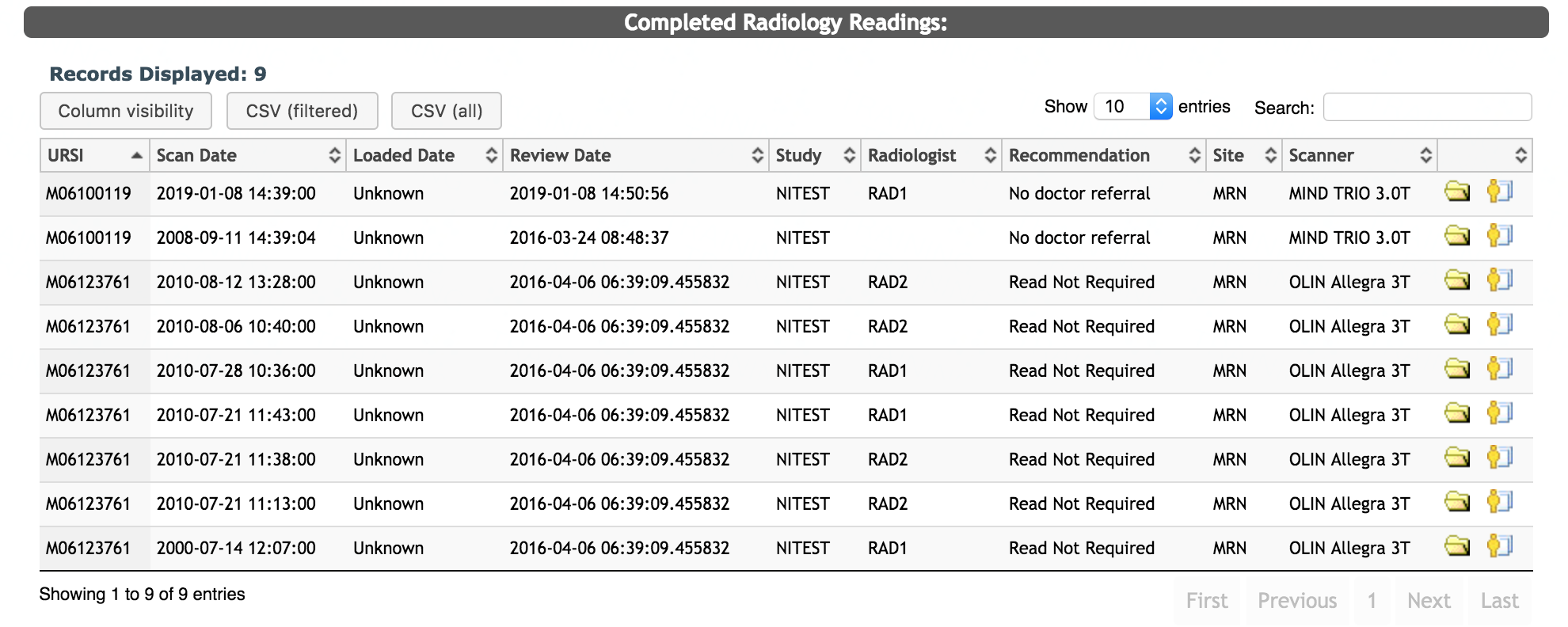
You will then see a list of reviews that meet your filtered criteria as well as the following details about the reviews:
- URSI
- Scan Date - date the scan was performed
- Loaded Date - date the scan was loaded to ownCloud
- Review Date - date the scan was reviewed by the radiologist
- Study - the study the scan was done under
- Radiologist - the radiologist who did the radiology review
- Recommendation - the findings of the radiologist
- Site - the site the scan was performed at
- Scanner - the scanner that performed the imaging
Note: If you remove radiologist permissions for a radiologist, their name will not show up on past reviews they have completed.
Click the person icon to open Subject Details for this subject. Click the folder icon to open the radiology report for editing. Editing is only available for Radiologist, Site Admins, and Supers.

After clicking the link to edit the radiology review, you will be asked if you are re-reviewing the scan or making administrative changes (e.g. fixing typos). If you select Re-reviewing, the radiologist, the scan review date, and scan review end date will be updated. If you select Administrative Changes, you will be allowed to update the review info, but the radiologist and the review dates will not be updated.

When editing a review, at the top of the page you will see Review History for All Subject’s Scans. This is where information will be displayed if the subject has been scanned before. Below that, you will see Review History for This Scan that lists a history of any edits done to the review. In the last section of the page you will see Re-Review This Scan. Listed here are the following items, which are all editable unless otherwise noted:
- Scan Path - the path where the scan is archived
- Subject ID (not editable) - subject’s URSI
- Subject Age (not editable)
- Subject Sex (not editable)
- Scan Date (not editable)
- Scanner (not editable)
- Session Notes (not editable) - notes for the scan
- Study (not editable)
- PI (not editable)
- Radiologist (not editable)
- Review Date (not editable)
- Comments - select a general comment from the drop down list and add a more specific comment in the text field under the drop down box if needed
- Recommendation - select No doctor referral or Doctor referral from the drop down
- Review Letter - select the radio button for the site the review template letter should generate for
Click Generate Report to sign and update the review letter.
Comments