While users are able to import assessments through the Admin tab after selecting a specific study, ASMT also allows users to import assessments for All Studies.

Upon logging into ASMT, the study drop down tab will automatically be set to All Studies. You can click the study drop down to select a particular study and access the other ASMT tools, or you can click Import Assessments in the upper right corner to import assessments into more than one of your studies.
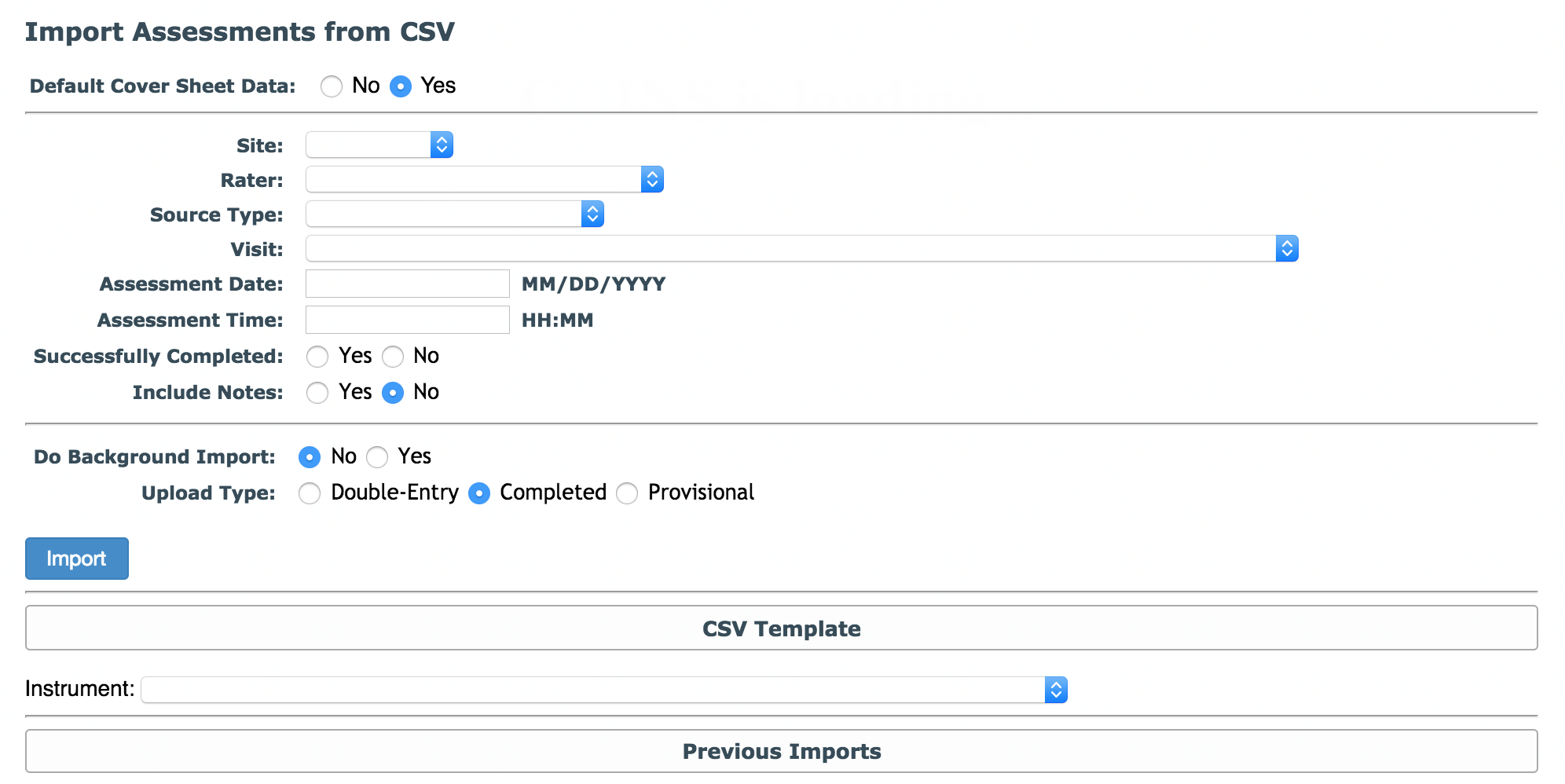
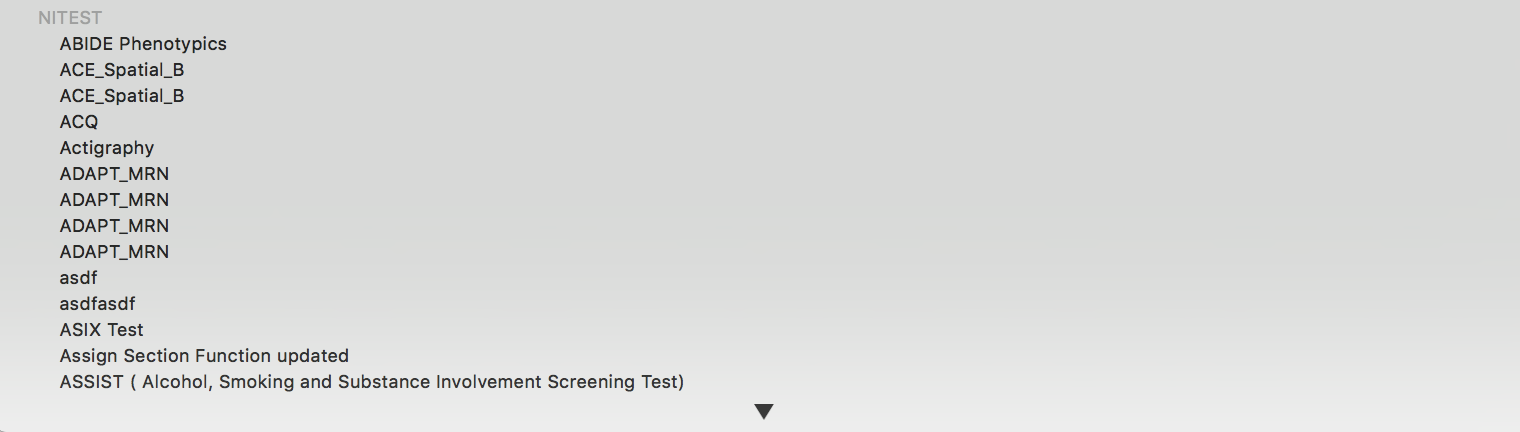
This tool is very similar to the study-specific import assessments tool, and the general instructions are the same. For detailed instructions on this tool, please see the Import Assessments article. However, there are some differences. When downloading the CSV Template for the instrument you would like to import, you will be shown instruments for all of your studies. The instrument drop down will be organized by studies you have access to (in alphabetical order) with each study's instruments below its name. If any of your studies share instruments, you will see those at the bottom with the sharing studies listed above.

Each csv template that you download will have an additional column for StudyID. This will allow you to import assessments for multiple studies that share the same instrument at the same time. If you download a csv template that is listed under a specific study, the template will list that study's ID only for you to fill in, even if that instrument is shared with multiple studies. If you download a csv template under multiple studies, you will see all of the study IDs that share that instrument, so that you can enter the correct study ID for each assessment.
Additionally, if you select Yes to Default Cover Sheet Data, you will be asked to fill in the cover sheet data before downloading the template. Because you will have to choose study-specific information to be on the cover sheet (e.g. visit, rater, etc.), you will have to choose an instrument specific to the study that is detailed on the cover sheet.
Comments