To see a list of all documents currently uploaded to the study's portal, click All Documents from the Document menu.
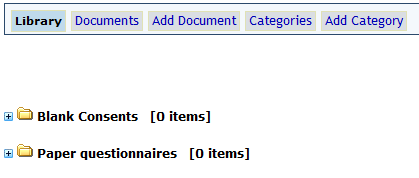
Here all parent categories will be listed. Click the + to expand the parent categories to see subcategories and documents contained inside.
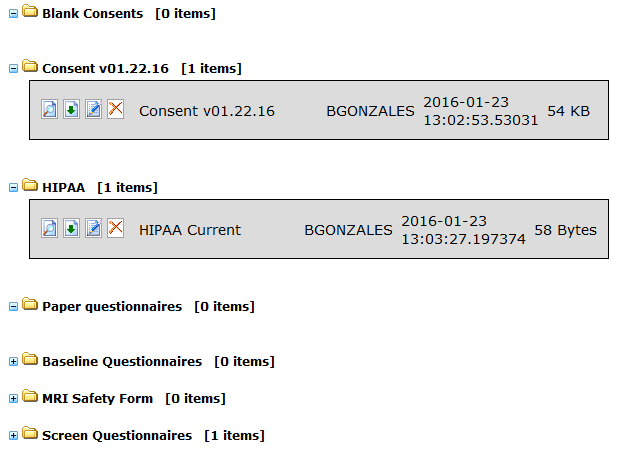
Once categories have been expanded to see the uploaded documents, you will also be able to see information about who uploaded the document, when it was uploaded, and its size. You can also perform several actions on the documents from this page.

Click the magnifying glass icon to see the document's properties.
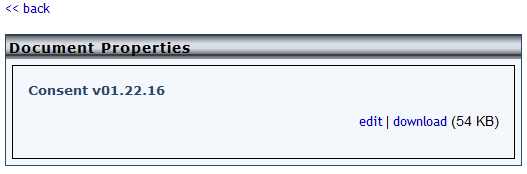
From this page you can download the document by clicking download and the user who uploaded the document can also choose to edit it by clicking edit. Click <<back to return to the previous page.
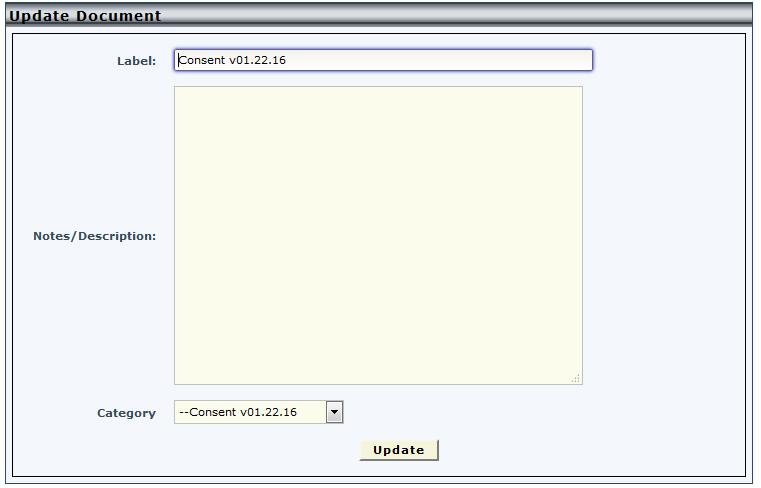
Click the down arrow icon to download the document. The user who uploaded the document can click the pencil icon to update the document.
Click the X to delete the document.
Categories can be updated from the List Categories page.
Comments