To access any requests you have made or requests to approve, click Data Requests and Downloads from the Data Exchange menu. Any messages can also be accessed from this page.
Your requests are filterable by request number and user. You can also choose how many requests per page are seen or choose to view all requests or just those to or from you. Click Update to update your filtered results. Requesters and Approvers can both click View Request to see the request as it was originally filtered in the Request Workspace.
Requesting Data
Use the filters to search through requests you have access to. All past and current request you have made will be listed here. Any pending request will be marked as such.

To read any messages for a request, click View Messages.
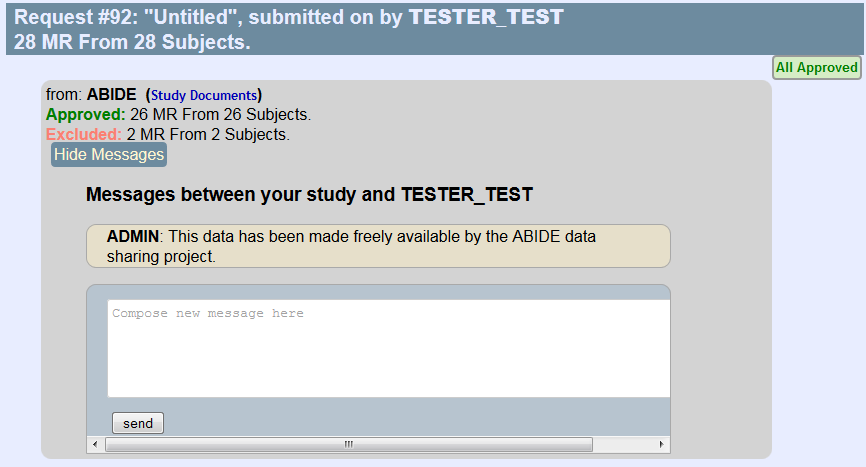
Here any messages received will be shown and you will also be able to communicate with the data owner by sending messages from here.
To download any study document that have been uploaded, click the Study Documents link. Below this link you will also be able to see the number of approved items and if any items were excluded from your request.
Once your data has been approved, the status will be updated and you will also receive an email notifying you the data is ready to be downloaded. Click the Approved Download icon to download the data.
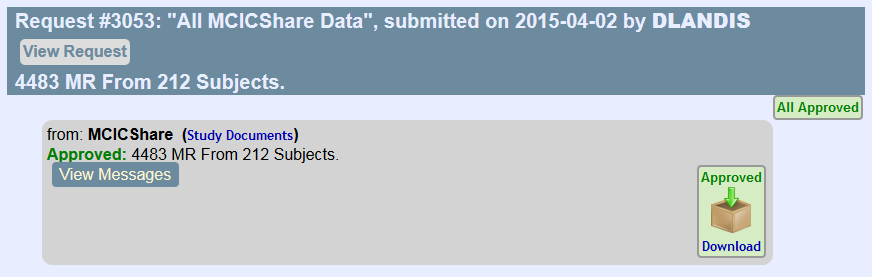
Once the icon has been clicked, the links for all downloadable files will be shown.
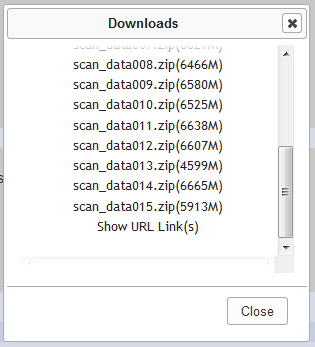
Data can also be downloaded using wget. At the bottom there will be an option for Show URL Link(s). Click this link to see all URLs to download with wget.

Use the following format to download Data Exchange files using wget:
wget --no-check-certificate --output-document=filename.zip -i "https://dx-download.mrn.org/dataDownloadCenter/?c=AAAAAAAAA|12345&e=example@example.org"
Note: If "Include age variable in exports" is set to Yes for any of the instruments you are downloading assessments for, a column labeled Age (participants' age when they completed the assessment) will be included.
Managing Data Requests
If you are a Data Exchange administrator, you will also approve and deny requests from this page. All previous and current requests for your data will be listed here. Use the filters to help find requests.
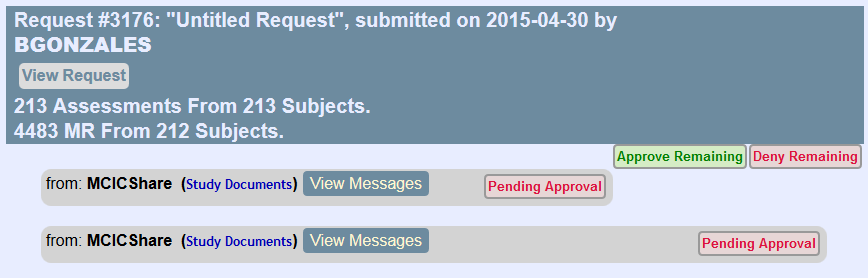
Click Approve Remaining to approve a request or Deny Remaining to deny it. Click View Messages to interact with the requester and see any previously received messages. Click Study Documents to download the documents that are available to the requester. These documents are uploaded and managed through the Study Information page.
Comments