To view any scan credit billing discrepancies, click View Discrepancies from the Billing menu.
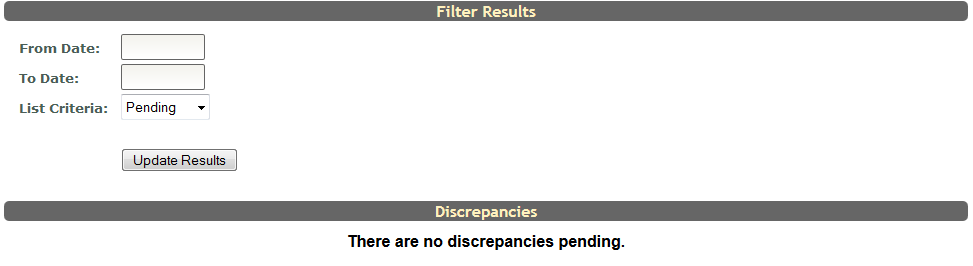
Here is where you can view any scans that were ran that did not have enough credits to charge or had any other issue when they were billed. The pending list will be automatically loaded when you arrive on the page. You can filter through all discrepancies by choosing from the following options:
- From Date - date to start date range search at
- To Date - date to end date range search at
- List Criteria - discrepancies current status
- Pending - needs to be resolved
- Complete - has been resolved
- All - both pending and complete discrepancies
Click Update Results to see the discrepancies that match your selected criteria.
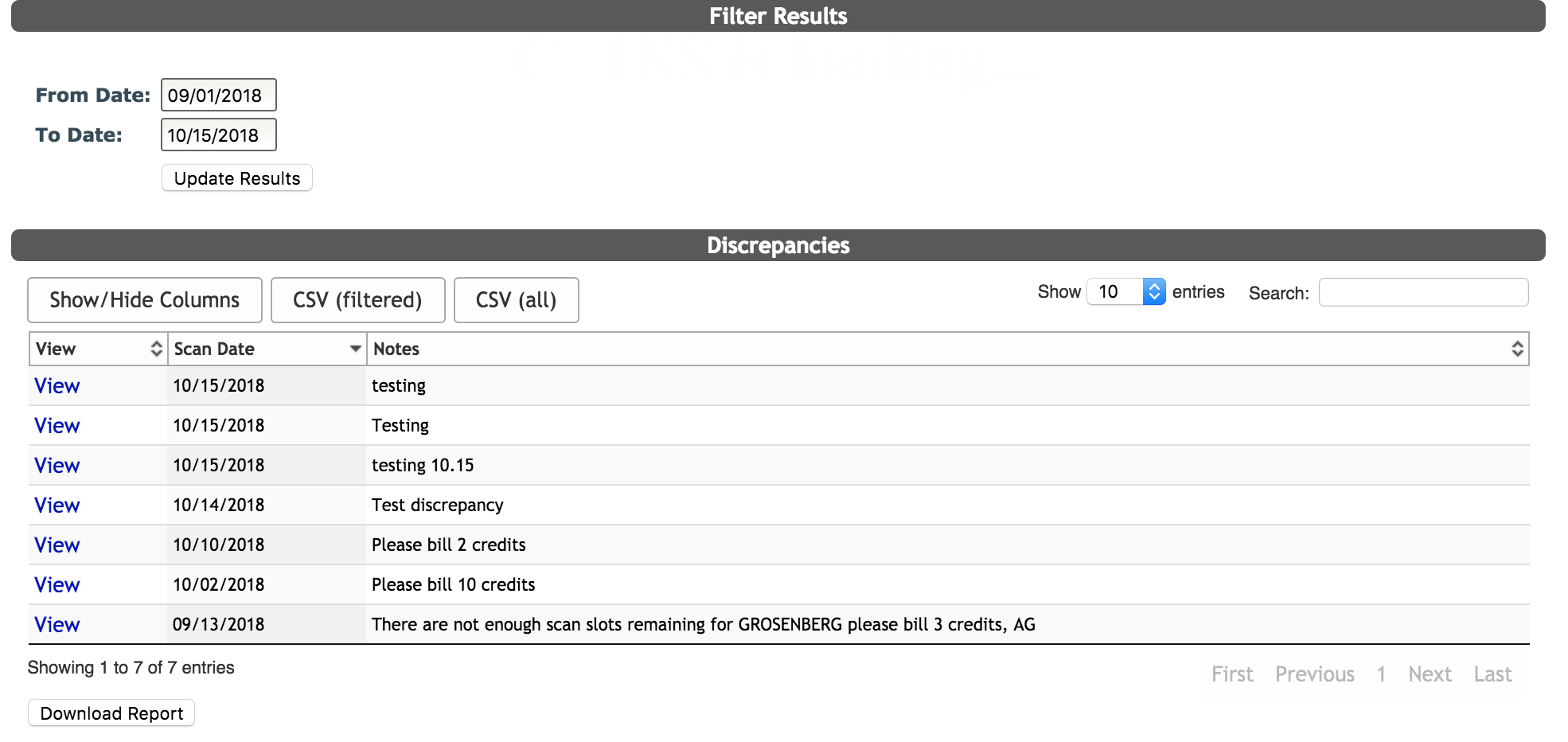 The results will show a list of discrepancies with the Scan Date and Notes listed. You can click Download Report at the bottom of the table to download a csv of the discrepancy list. The following information will be listed for each scan on the list:
- Session ID
- Scan Date
- PI
- Study Number
- Charge Code
- Discrepancies
Click view to open the scan billing to fix the billing issue. Canceled scans with discrepancies will also be listed. Clicking view on a canceled scan session will allow you to edit the canceled scan billing.
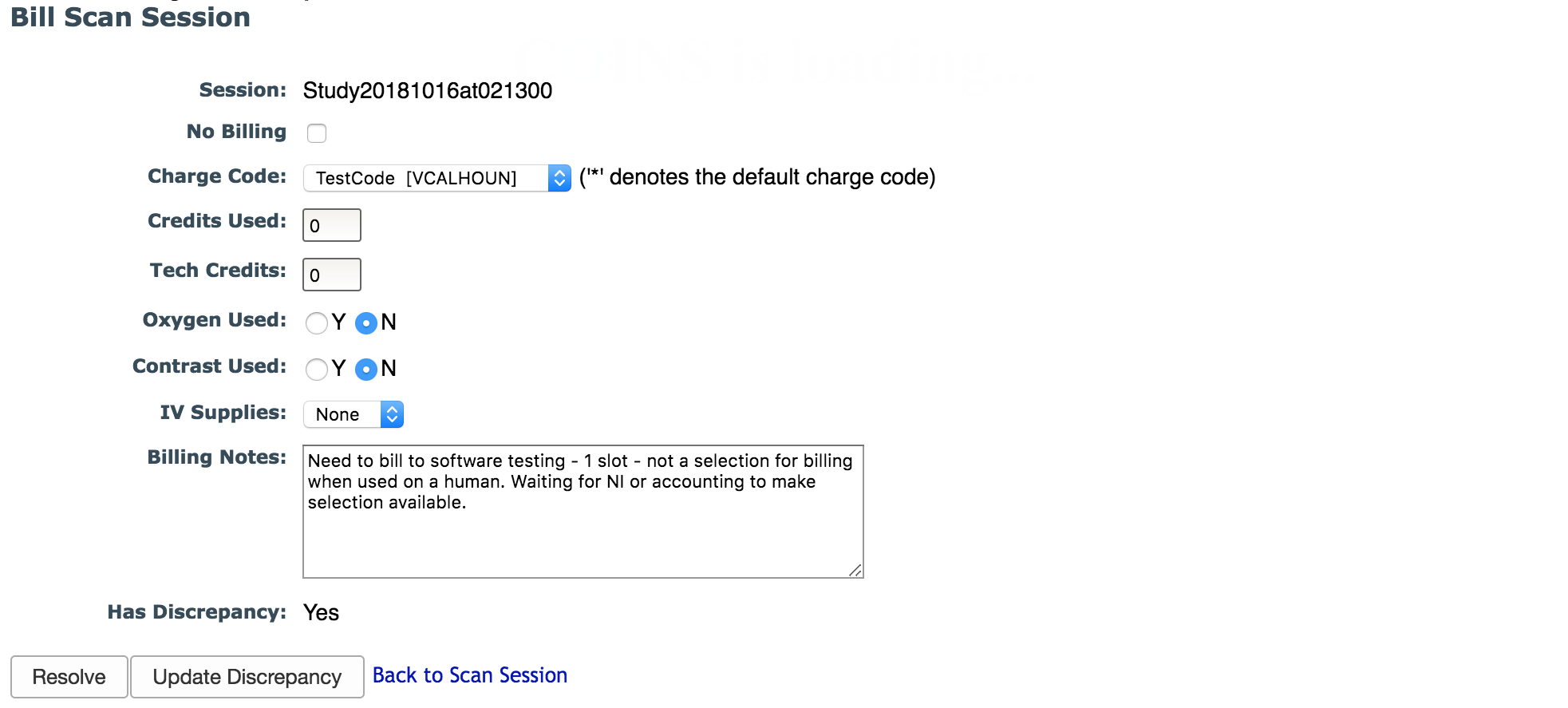
To finalize the billing for the scan, click Resolve. You can update the note or scan items without resolving the discrepancy by editing the items and then clicking Update Discrepancy. For more information on billing scans, see the Session Summary in the Scan Session Details article.
Comments