Data Criteria
Prior to staring this step in Query Builder, please select your subjects.
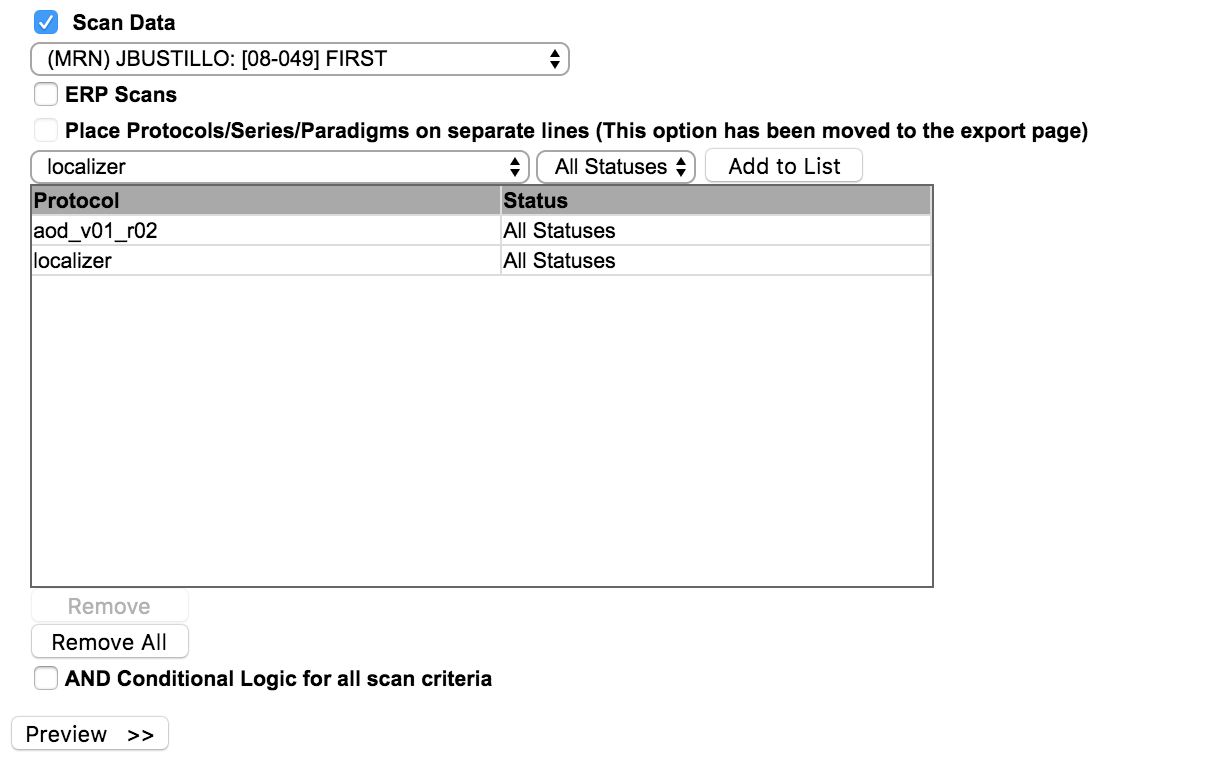
Select the study from which you would like to query scan data. The All protocols drop down will be populated with the scan series labels that have been created for the study. The statuses drop down includes – All Statuses, Complete - No Problems, Complete - Problems and Incomplete (series was not finished).
Click the series label of interest, select the appropriate status and click Add to list. You can add more than one series to export. To remove an item from the list, select it and click Remove. If you would like to remove all of the items click Remove All.
Selecting AND Conditional Logic for all scan criteria will retrieve subjects who have all specified criteria (i.e., all series that have been added to the list) and exclude any subjects that do not have data for the selected series.
Click Preview>> when you have select all of the desired criteria.
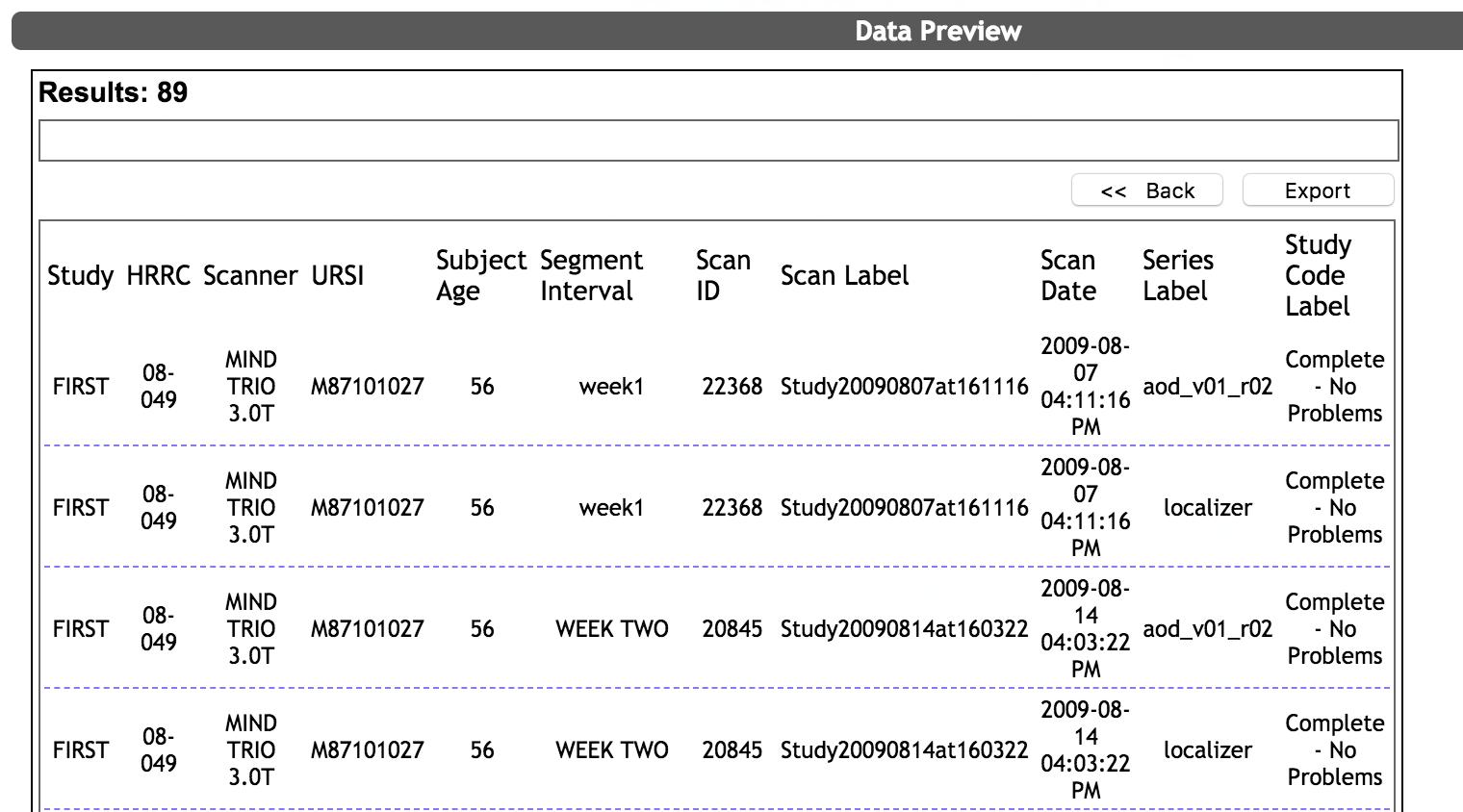
After clicking Preview, you will be shown a Data Preview. Note: There will be no URSI data preview for queries using anonymization IDs. You will instead be shown the number of series found.
Click Export to continue or <<Back to return to the Select Subjects and Data Criteria page.
Export Options
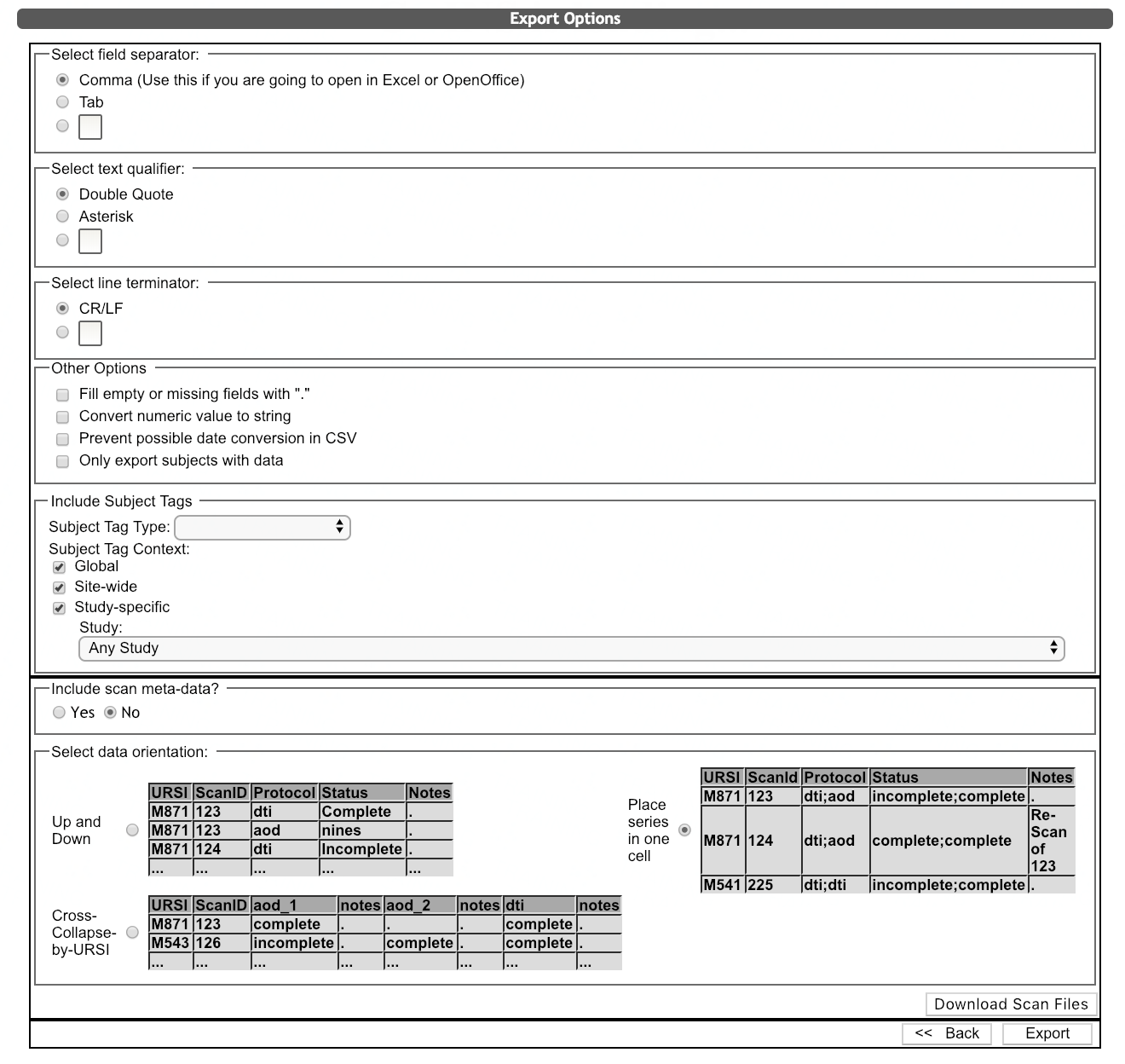
When exporting scan data, you can choose the field separator, text qualifier, and line terminator.
Other options include filling in empty cells with a period and exporting only URSIs with data. Exporting only URSIs with data is helpful if the subject list that you queried with is large.
Additionally, you can choose to include Subject Tags in the export. When exporting Subject Tags, you will be required to chose the Subject Tag Type, Subject Tag Context and the Study. Note: There will be no subject tag export options for queries using anonymization IDs.
Include scan meta-data
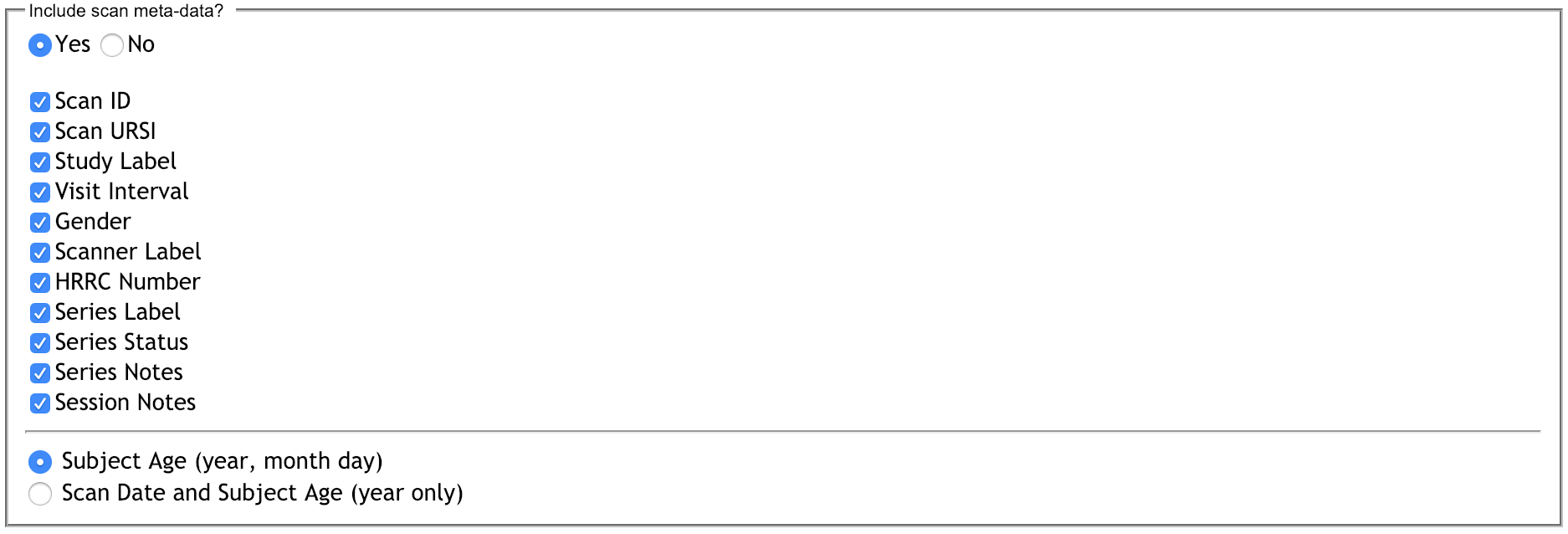
As with assessment export, Query Builder will allow you to pull scan meta-data. Click Yes and you will be able to choose which meta-data to include in the file. You will also be able to choose which type of subject age data you would like to export. You can either choose Subject Age (year, month, day) OR Scan Date and Subject Age (year only). We do not allow users to export the scan date with the detailed age.
The scan export page also has the general export options as well as the orientation options.
- Up and Down: the series labels are in a column instead of a row, URSIs are on multiple rows
- Cross Collapse by URSI: one row per URSI.
- Place Series in one cell: one row per URSI with all of the queried series labels in one cell, divided by semi-colon.
Click Export to start your data download or <<Back to return to the Data Preview page.
To download actual dicom and nii files click Download Scan Files.
Comments