Any study in COINS can be configured by PIs to share data through Data Exchange by selecting Manage Shared Data through the Data Exchange menu in MICIS. If you would like to share data through Data Exchange, but your data is not already in COINS, you can still share the data by going to Contribute Data.
To continue the process of sharing data already in COINS, select the study you would like to manage shared data for from the drop down list.

If the study is not already part of Data Exchange, you will need to include it by clicking Yes, include the study now! or Cancel if you do not want to include the study in Data Exchange. Including your study's data in Data Exchange can also be managed from the Change Study Details page.

View Reports and manage the data you want to include in Data Exchange.
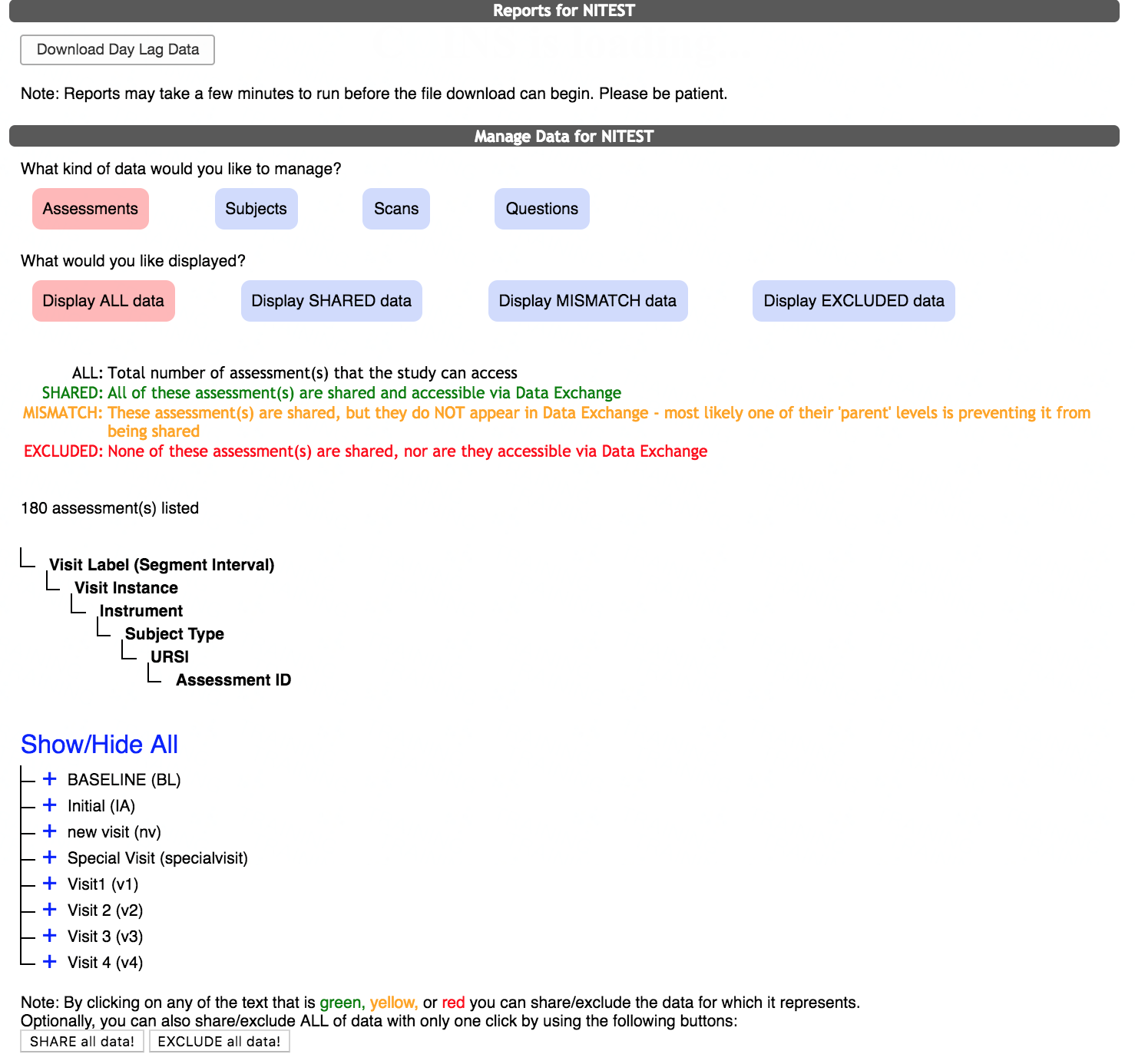
Reports for the study will be listed for download. The Day Lag Report is a useful tool for study staff to review the collection time for assessments throughout the course of the study. It also is helpful in determining outliers in their data that need to be investigated prior to data sharing. Click Download Day Lag Data to download the csv.

Select what kind of data you would like to manage. Choose from your Assessments, Subjects, Scans and Questions by clicking on the label name (selected labels will be light red).

Then select what data you would like displayed. Choose from Display ALL data, Display SHARED data, Display MISMATCHED data and Display EXCLUDED data.

Data from the study will be color coded to show what is currently being shared and in Data Exchange and what is not.
- Green: items shared and are included Data Exchange
- Yellow: items mismatched, meaning they are shared but are not in Data Exchange due to conflicting permissions
- Red: items are not shared and are excluded from Data Exchange
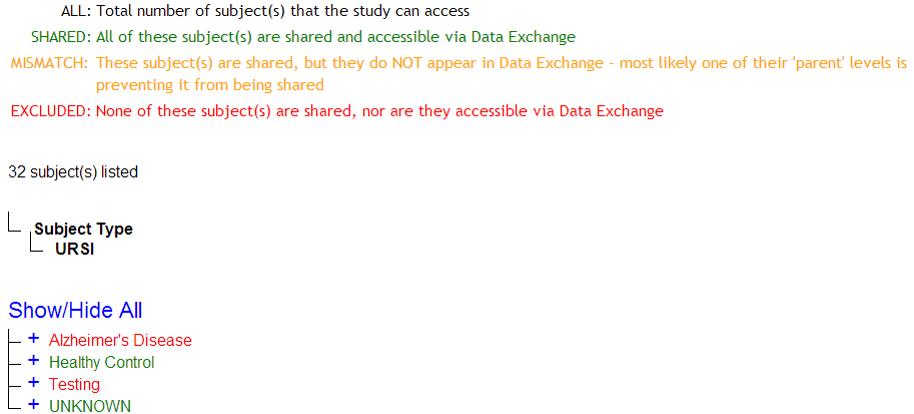
Color coded items can also be clicked to change their accessibility status in Data Exchange.
If you wish to share or exclude all data for the study in Data Exchange, you can click SHARE all data! or EXCLUDE all data! at the bottom of the page.

Categories for data you have selected to manage will be shown as you select different types of data to manage.
The first list shows the subcategories each kind of sharable data is arranged into.
The second list helps you customize which data from each of the subcategories is being shared. You can see what is being shared by clicking the + and – signs next to each subcategory.
Click the colored word labels to change their sharing permissions.
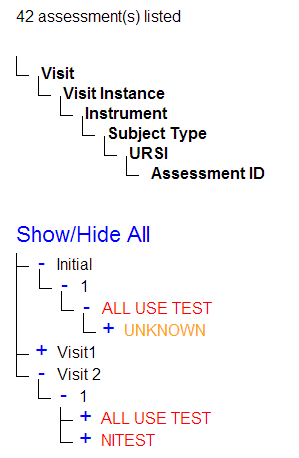
Mismatched items in yellow cannot be included in Data Exchange due to conflicting sharing permissions.
For example, in this data set UNKNOWN and Healthy Control Subject Types in Visit1 are mismatched and cannot be shared in Data Exchange.
Subjects with data in these Instruments cannot be shared in Data Exchange because the Instrument is excluded from Data Exchange even though the Subject Type is shared.
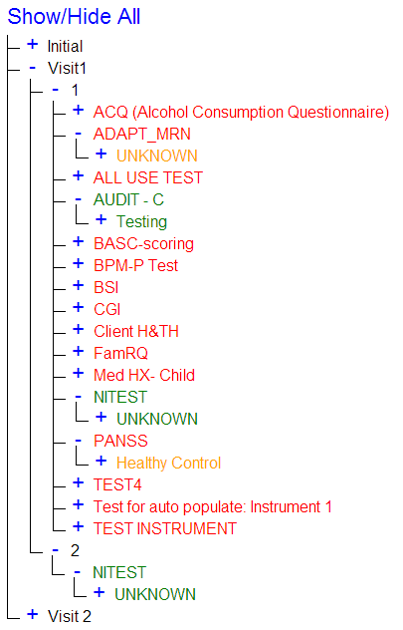
To share items in Data Exchange that are mismatched, the permissions must be changed allowing them to match.
By clicking on the names of the Instruments with mismatched Subject Types and allowing the Instruments to be shared, the permissions will match. Now this data will be shared and included in Data Exchange.
It's recommend you manage your scan labels and update your study's information now that data is being shared. These tools will better help users find and navigate through your shared data.
Comments