Secondary Contact information can be added to each participant to be used in case of an emergency or if the study requires contact that extends beyond the participant. It is important to remember that Secondary Contact information is shared across studies, the same way Notes are. You can add a Secondary Contact at the time of enrollment or by editing Subject Details.
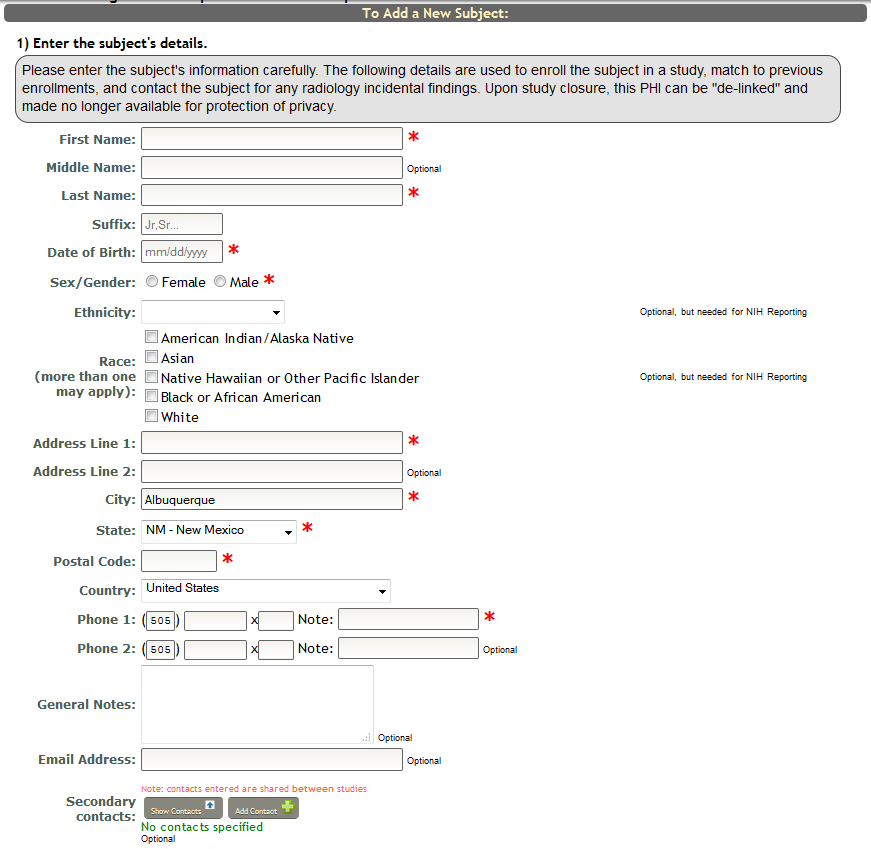
When enrolling a new subject, click the Add Contacts button and the section to add contacts will appear.
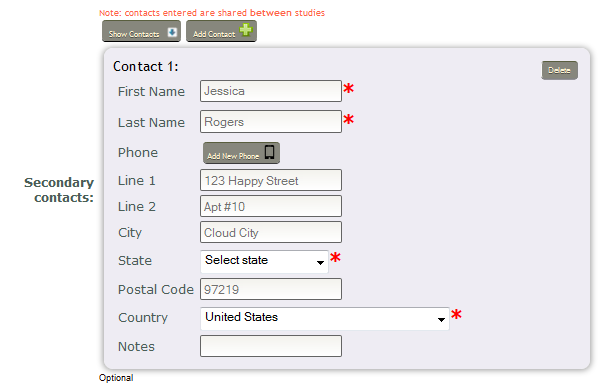 Fill in the contact's information. First name, last name, state and country are required fields. To add a phone number, click Add New Phone.
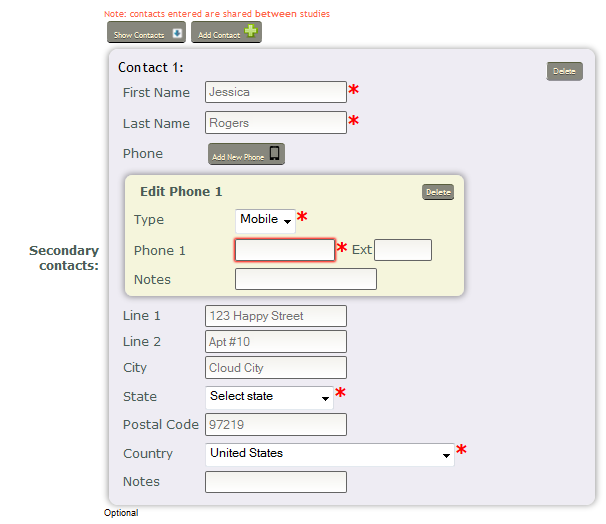
You can add multiple Secondary Contacts and phones by continuing to click Add Contact and Add New Phone.
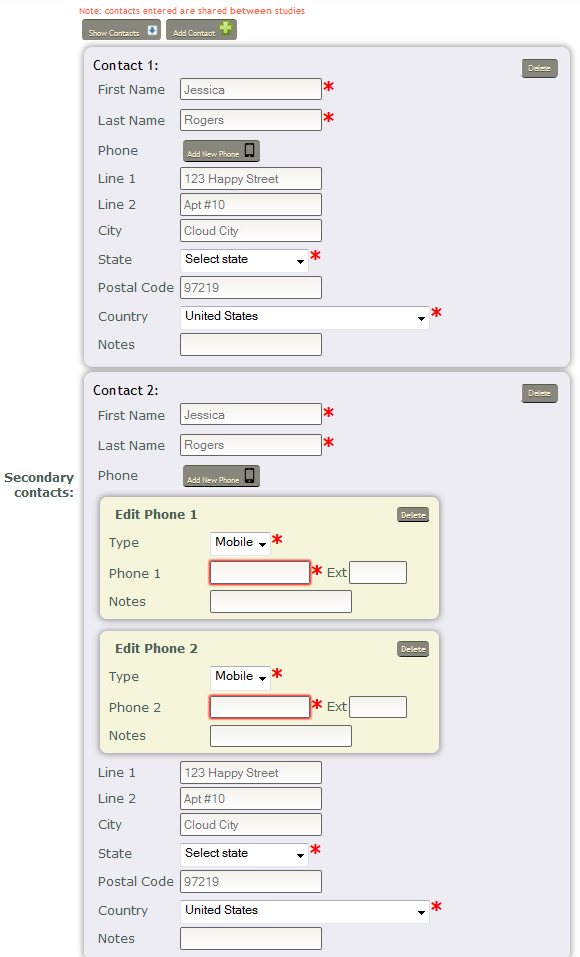
When entering phone information, the type and a number are required. To remove the phone or the secondary contact click Delete.
When you are finished entering the secondary contact information, continue completing the information on the Add a New Subject page and click Continue> at the bottom of the page.
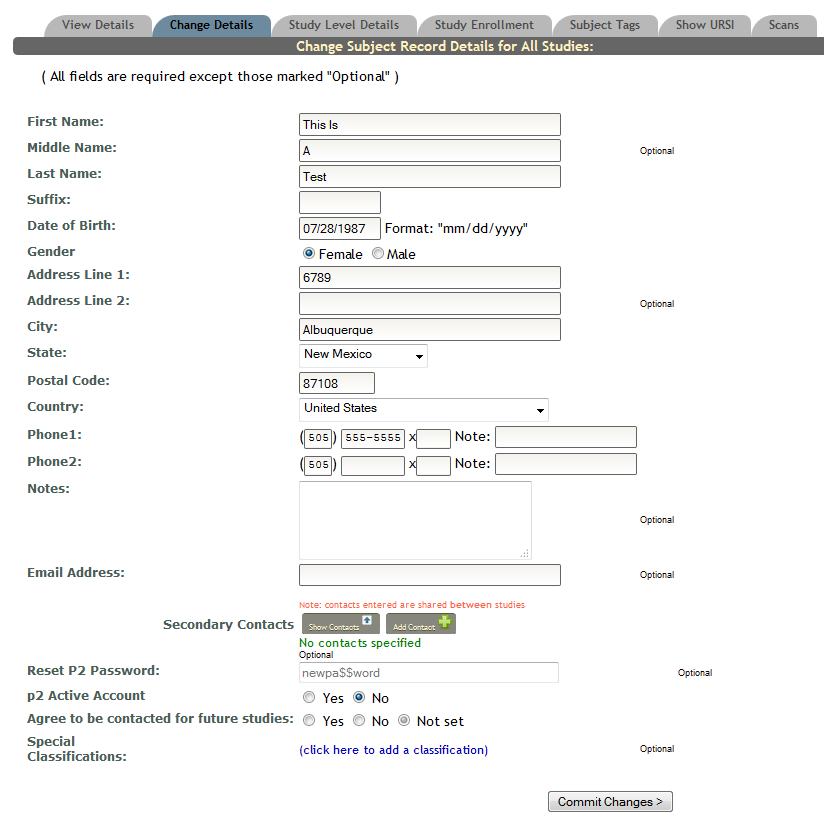
To edit Secondary Contact information for a subject who already exists or to edit existing contact information, search for the subject in MICIS and navigate to the Change Details tab. From here you will be able to add new contacts by using the same methods listed above or you can edit existing information. Remember to click Show Contacts to view existing Secondary Contact information.
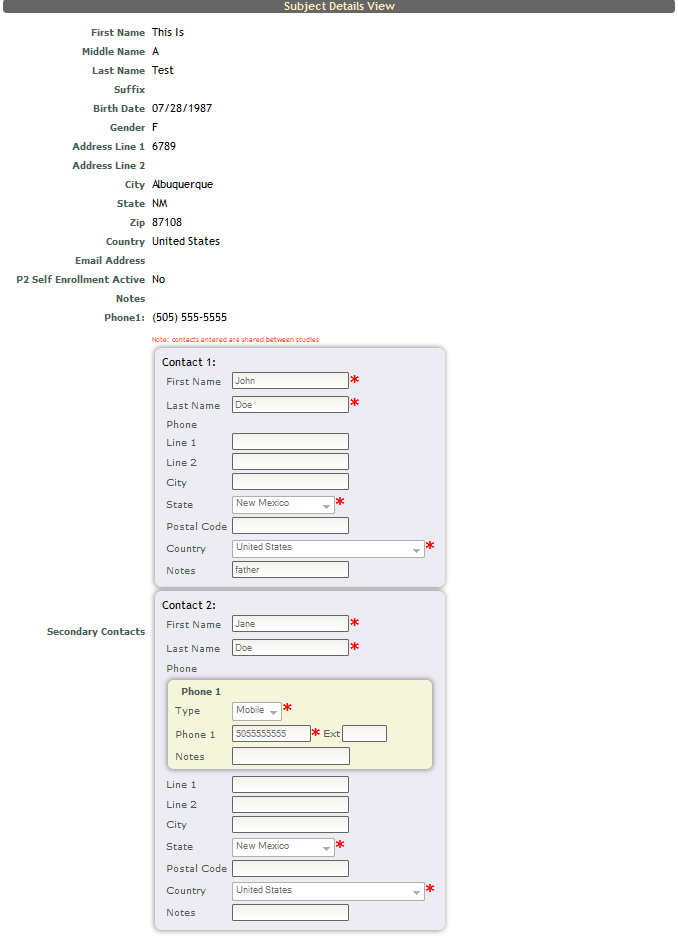
To view existing secondary contact information, look up the subject in MICIS and go to the View Details to view existing contact information.
Comments