The Study Mapping Management Image Export tool allows NDA studies to map MRI series and export imaging metadata into the NDA Image (image03) CSV, allowing for direct submission to the NDA validation tool.
To access this tool click Study Mapping Management from the Studies menu and then click the Image Mapping and Export tab.
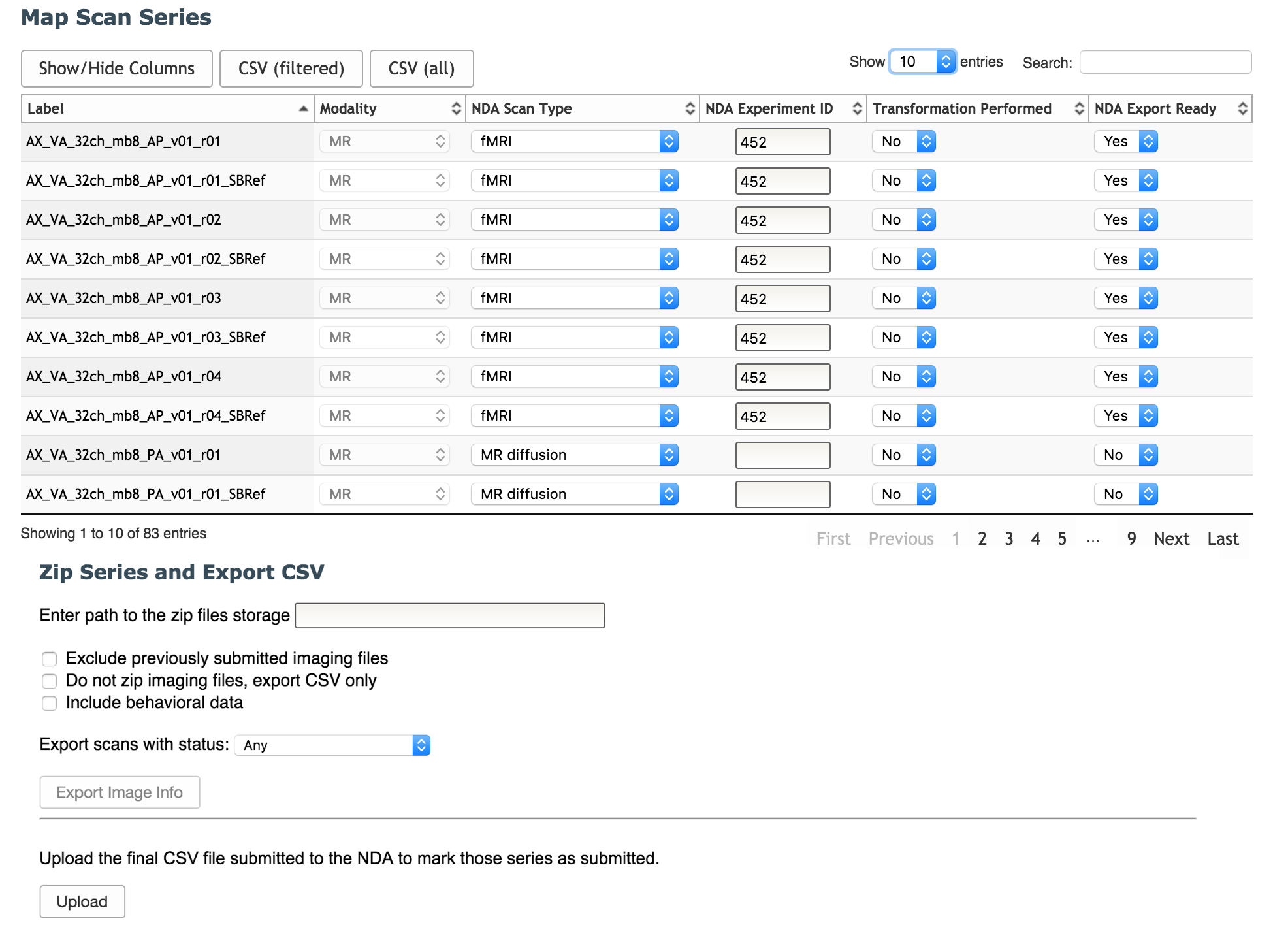
Map Scan Series
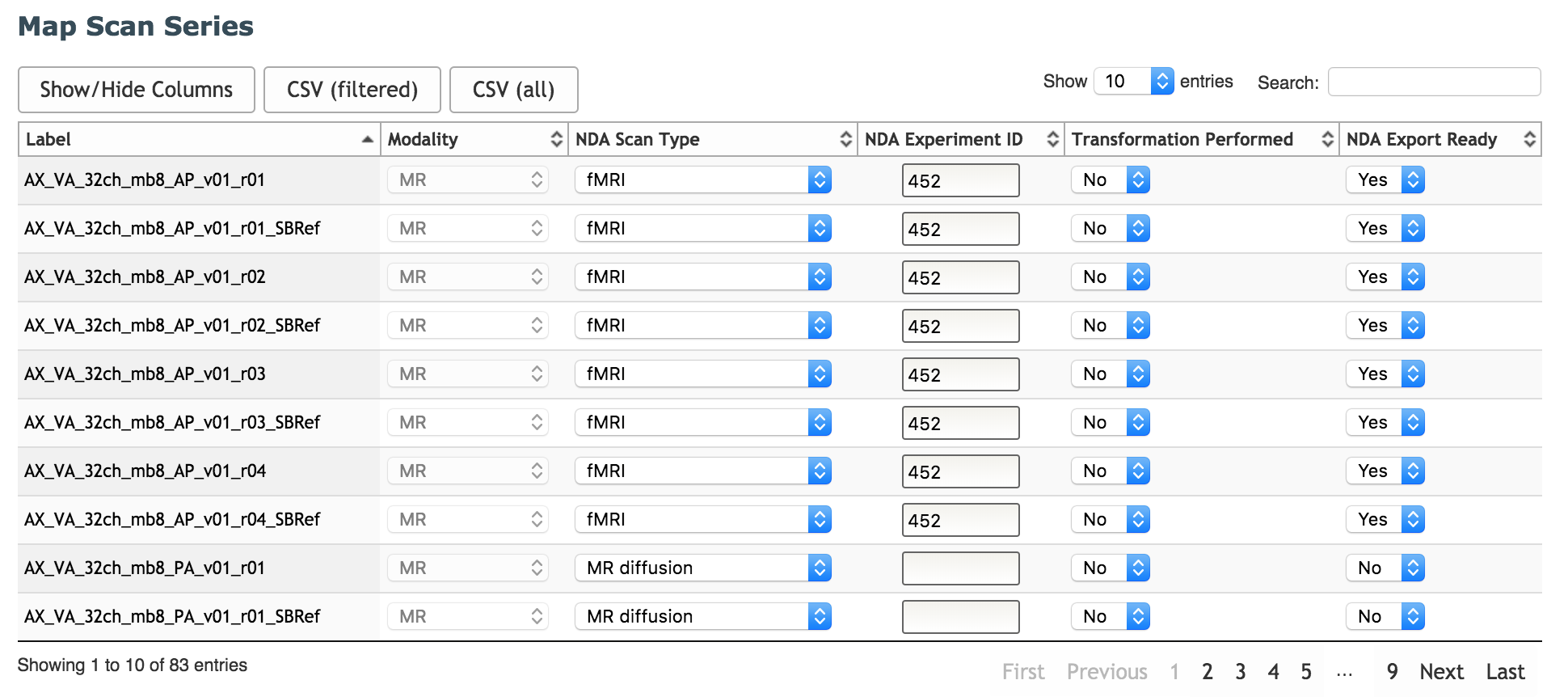
The Map Scan Series table will list all scan series associated with the selected study. Each series can be mapped to an NDA Scan Type, Experiment ID (required for fMRI scan types only), and Transformation Performed. The mappings will be used to populate the image submission CSV. Select if the series should be exported by setting the NDA Export Ready column. Only those set to Yes will be exported.
Zip Series and Export CSV
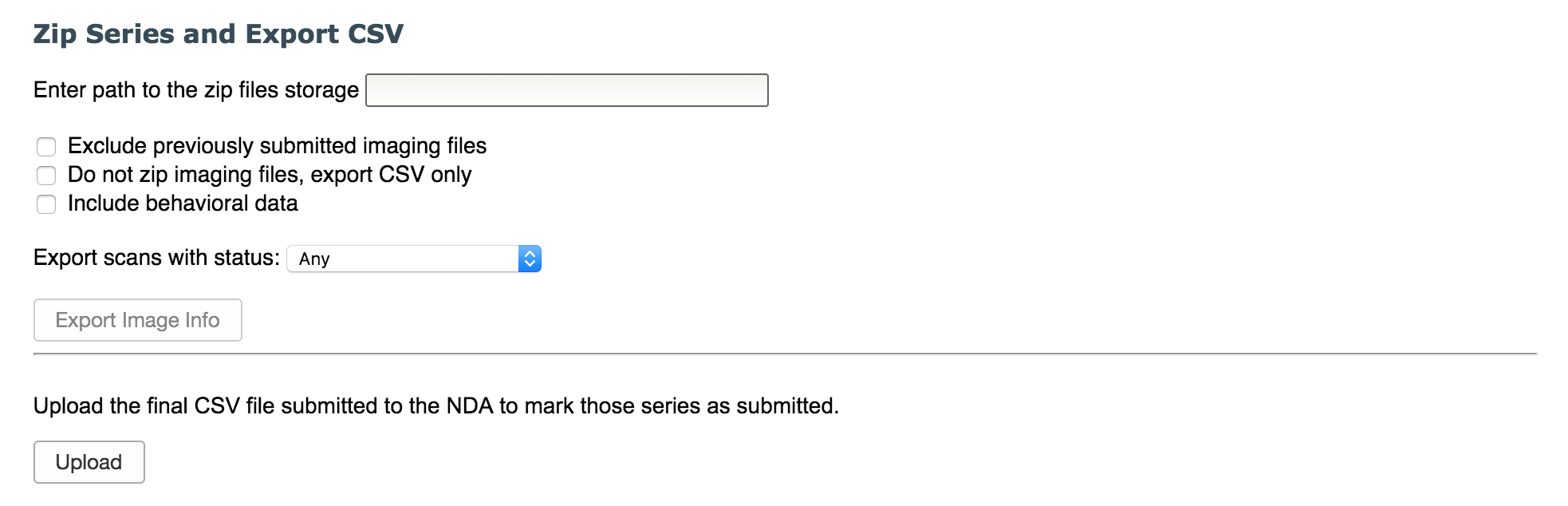
The NDA requires that metadata for each MRI series submitted be added to the image CSV and that all DICOMs for each series be zipped. COINS is able to perform both operations for the export. After image data has been mapped and has NDA Export Ready set to Yes in the mapping table, set the following export options.
- Zip path - Enter in the path where the zipped DICOM series should be sent. There is a default path for MRN users that must be used. Please submit a ticket if the path location is needed.
- Exclude previously submitted image files - Selecting this will prevent series marked as previously submitted from being added to the CSV or zipped.
- Do not zip imaging file, export CSV only - This option will only export the image CSV for review, without having to zip all the image series.
- Include behavioral data - selecting this will include any behavioral data associated with the scan sessions. This option is selected by default.
- Export Scans with status - Use the drop down to filter scan export by status.
- Any: selecting this will export all statuses
- Complete - No problems: selecting this will export only Complete - No problems
- Complete: selecting this will export Complete - No problems and Complete - Problems
Once options have been selected, click Export Image Info. This button will be disabled if no series are set to Yes for NDA Export Ready. This will begin the CSV generation and zipping if applicable. Depending on how many series are set to be exported, it may take several minutes to generate the CSV.
After images have been validated and successfully uploaded to the NDA database, re-upload the submission CSV to COINS by clicking Upload. This will mark the series in the CSV as submitted and will delete the zipped series from the storage location. It is important that you only import this file after the series have been uploaded because the zips will be immediately deleted.
Comments