To view a list of scans and related items that have been billed through COINS click Billing Report from the Reports menu. Use the filtering options to find billing information you want to see:
- Start Scan Date - start date of search date range
- End Scan Date - end date of search date range
- Modality - choose the modalities you wish to search for
- MR
- MEG
- EEG
- Charge Code - select a code from the drop down list
- Funding Source - select a source from the drop down list
- Show Provenance - toggle the box to show or hide provenance (last modification history)
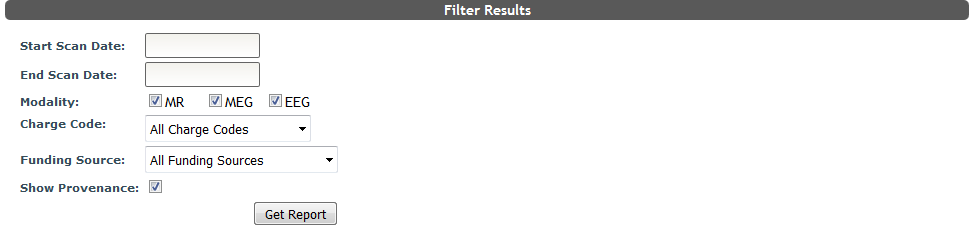
Click Get Report to generate the csv report.
The csv report will have the following items:
- Purchase ID
- Date
- Study Name
- Study Number
- PI
- Charge Code
- Project Number
- Modality
- Scanner Time - amount of time spent scanning
- Number(#) Scan Credits - number of scan credits billed
- Tech Credits - number of tech credits billed
- Number(#) Contrast Vials - amount of contrast vials used
- Power Injector and IV Supplies - did the scan use a power injector for contrast
- Hand Injector IV Supplies - did the scan have a contrast injection by hand
- Oxygen - did the scan use oxygen
- Incomplete? - was the scan incomplete
- Last Modified (hidden if Show Provenance is toggled off)
- Last Modifier (hidden if Show Provenance is toggled off)
- Billing Notes
Note: If there are scans on the discrepancy list that meet billing report criteria, you will be notified that they are not included in the report and that they will appear on reports once discrepancies have been resolved. You will also be notified of any canceled scans with discrepancies that meet the billing report criteria. Any scans that are checked as No Billing will not be included in the Billing Report, and users will not be notified of their absence.
Comments