Backing Up Study Data
After data has been collected, it is recommended that it be backed up in the event that the browser's cache is accidentally cleared prior to import. To back up data, click Backup Study Data from the menu bar.
All data will be backed up. Depending on the size of your data, this may take anywhere between a few seconds to a few minutes. Once the backup preparation finishes, you will be presented a button to download the full file.
Click Backup! to download the backup data that can be used in the event the browser data is lost.
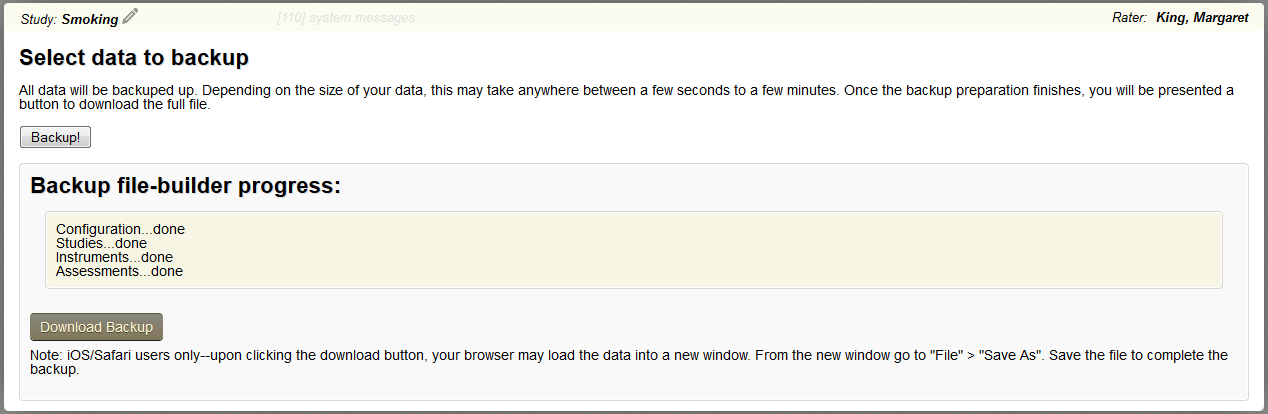
Once the backup file-builder process is complete, click Download Backup to download the data. For iOS/Safari users only, upon clicking the download button, your browser may load the data into a new window. From the new window go to "File" > "Save As". Save the file to complete the backup.
Syncing Assessments
Once an internet connection has been reestablished, assessment can be synced to Assessment Manager. Go to the Assessments tab from the oCOINS menu to start this process.
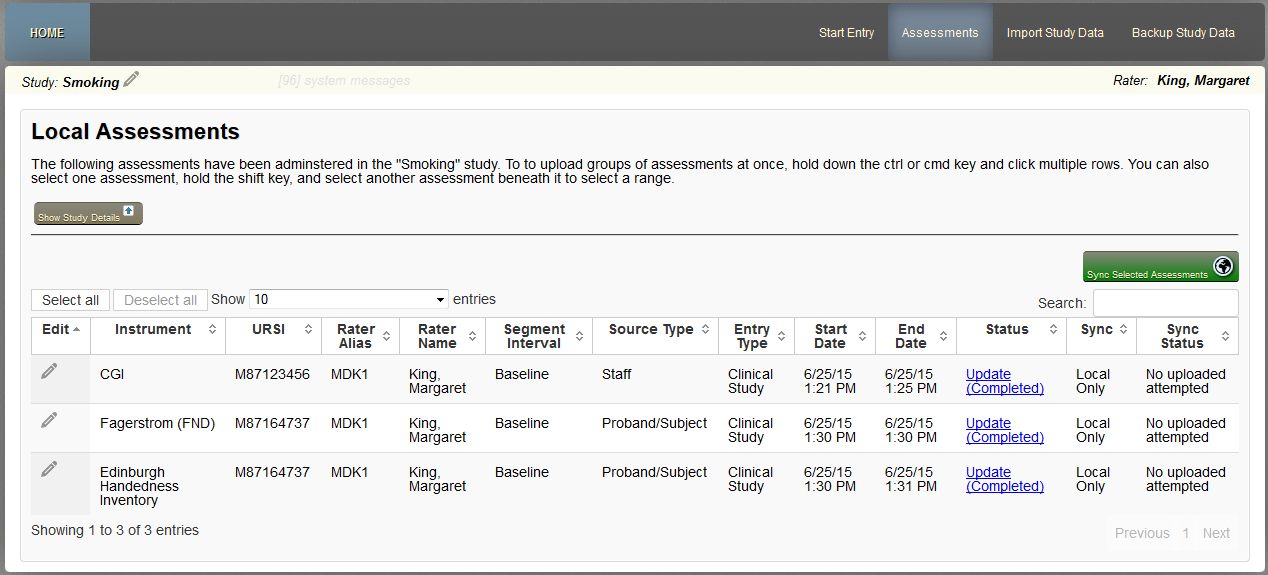
Select which assessments to import by clicking on the table row. To upload groups of assessments at once, hold down the ctrl or cmd key and click multiple rows. You can also select one assessment, hold the shift key, and select another assessment beneath it to select a range. You can also click Select All to choose all assessments in the table or Deselect All to select nothing. Selected assessments will be highlighted in blue.
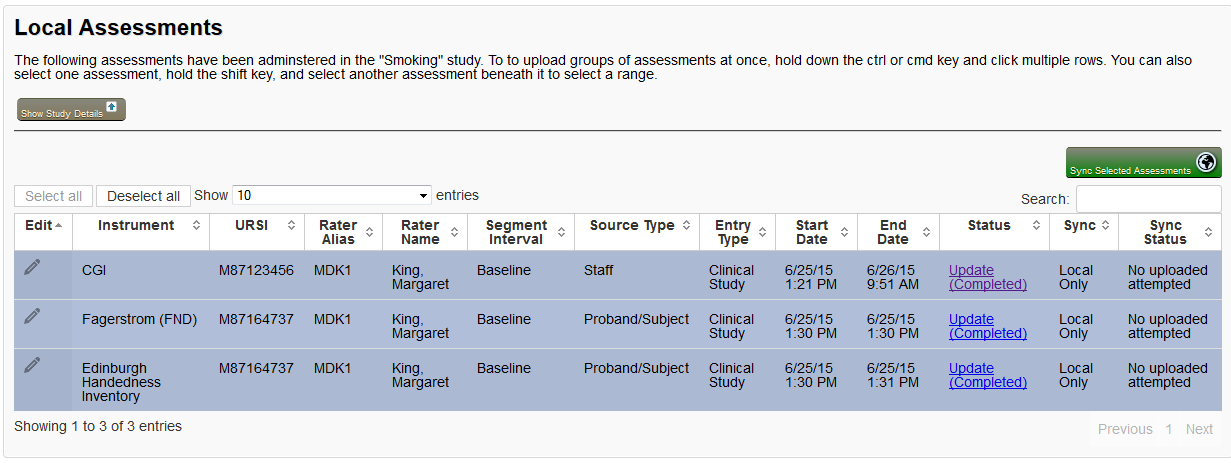
After selecting which assessments to sync, click Sync Selected Assessments. If you have yet to log back into COINS, you will be prompted to do so.
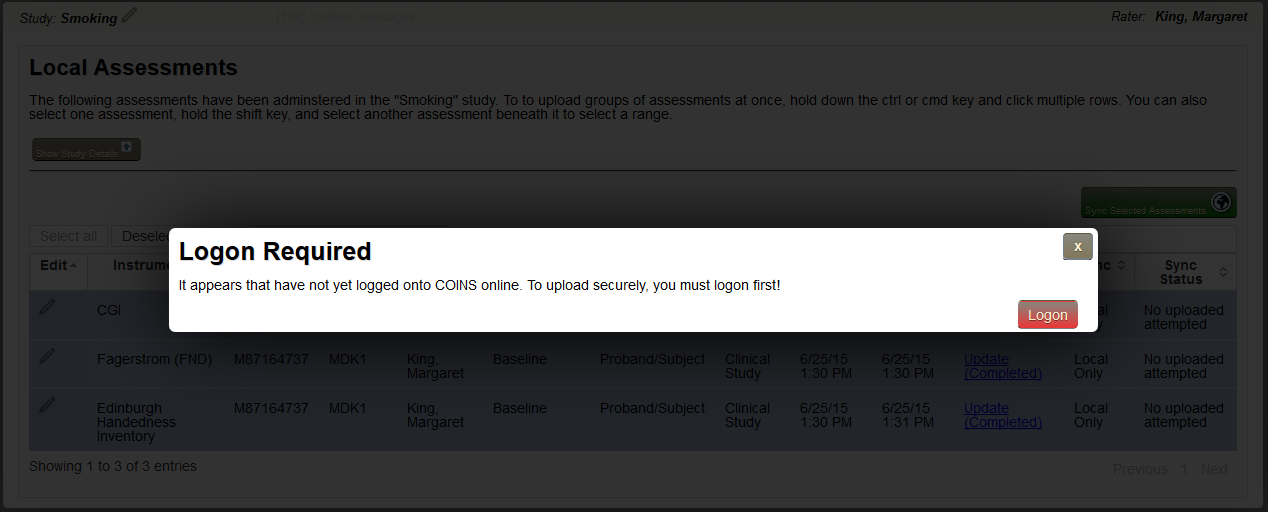
Once logged in, the assessments will sync. At this step, URSI validation is performed. If an URSI does not exist or is not enrolled in the study the information was collected for, an error will occur. All other assessments that pass validation will be synced.

After the sync, you will be able to see the status of each assessment. Any errors will be shown under Sync Status. These errors can be corrected by correcting the cover sheet and performing another sync.
Synced data will now appear in Assessment Manager and can be searched and exported like other assessments.
After data has been synced, it will live in the cache until it is cleared. The cache can be cleared to remove the assessments, however this will remove all the data cached for oCOINS. In this case, you will need to re-cache your study to access it again. If you choose to not clear the cache, previously synced assessments will be skipped in future sync processes. This means if some assessments have already been synced and other have not, you can still select all assessments and sync them.
Comments