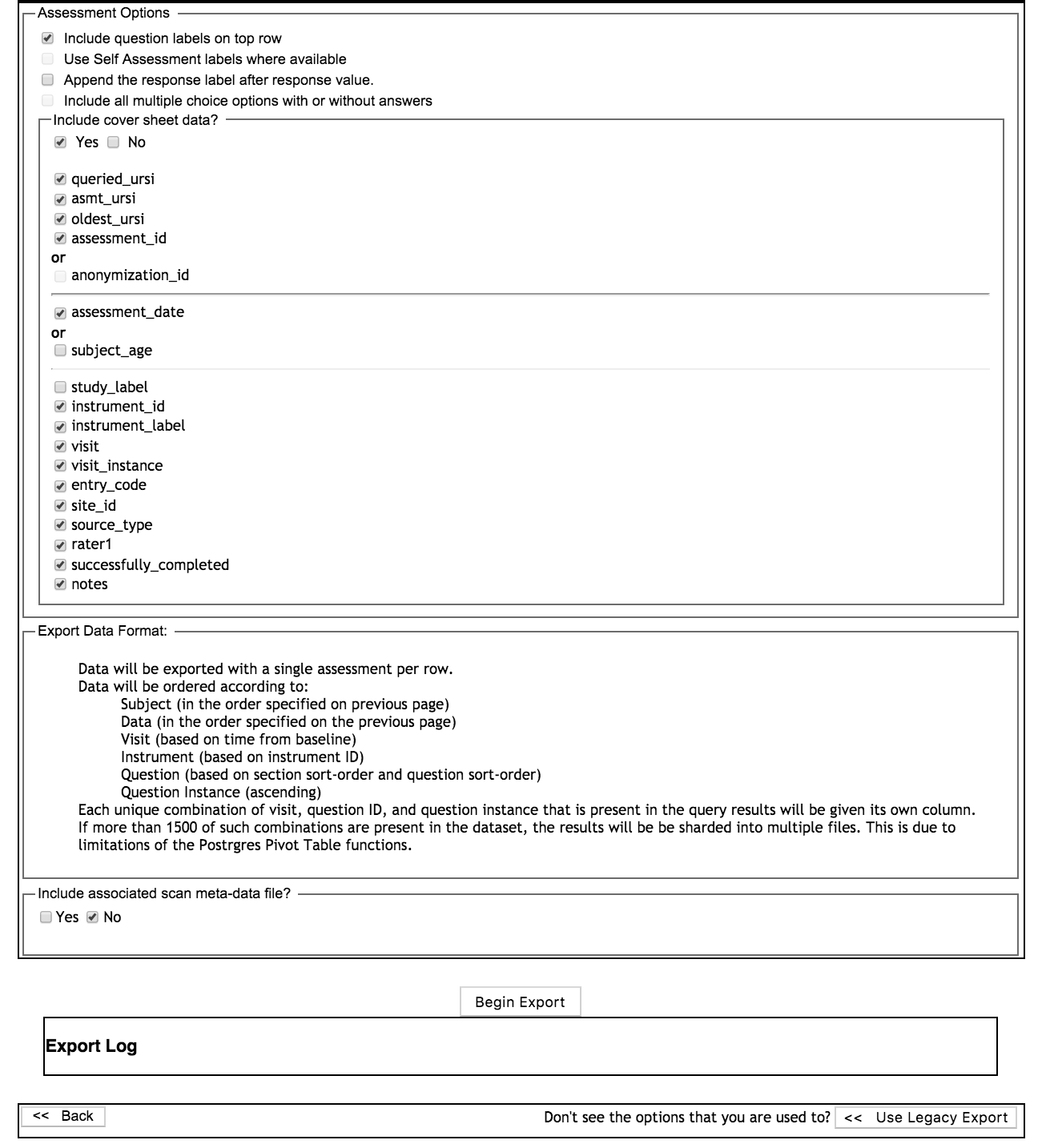
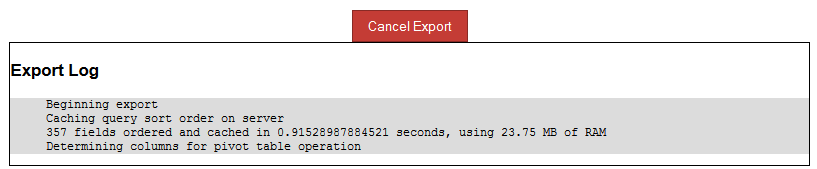
For a queries that will return large amounts of data, we recommend using the High Volume export, which is the default query tool. This export type includes an export log of the operations that are happening while the data is being pulled and formatted. From this log you will be able to see where your export is in the process and whether or not any errors occurred. You can also cancel the export, which is useful if it seems that a query has stalled or is no longer processing. This export type does have limited export options, but original options and export formatting can still be used by clicking Use Legacy Export.
Export Options
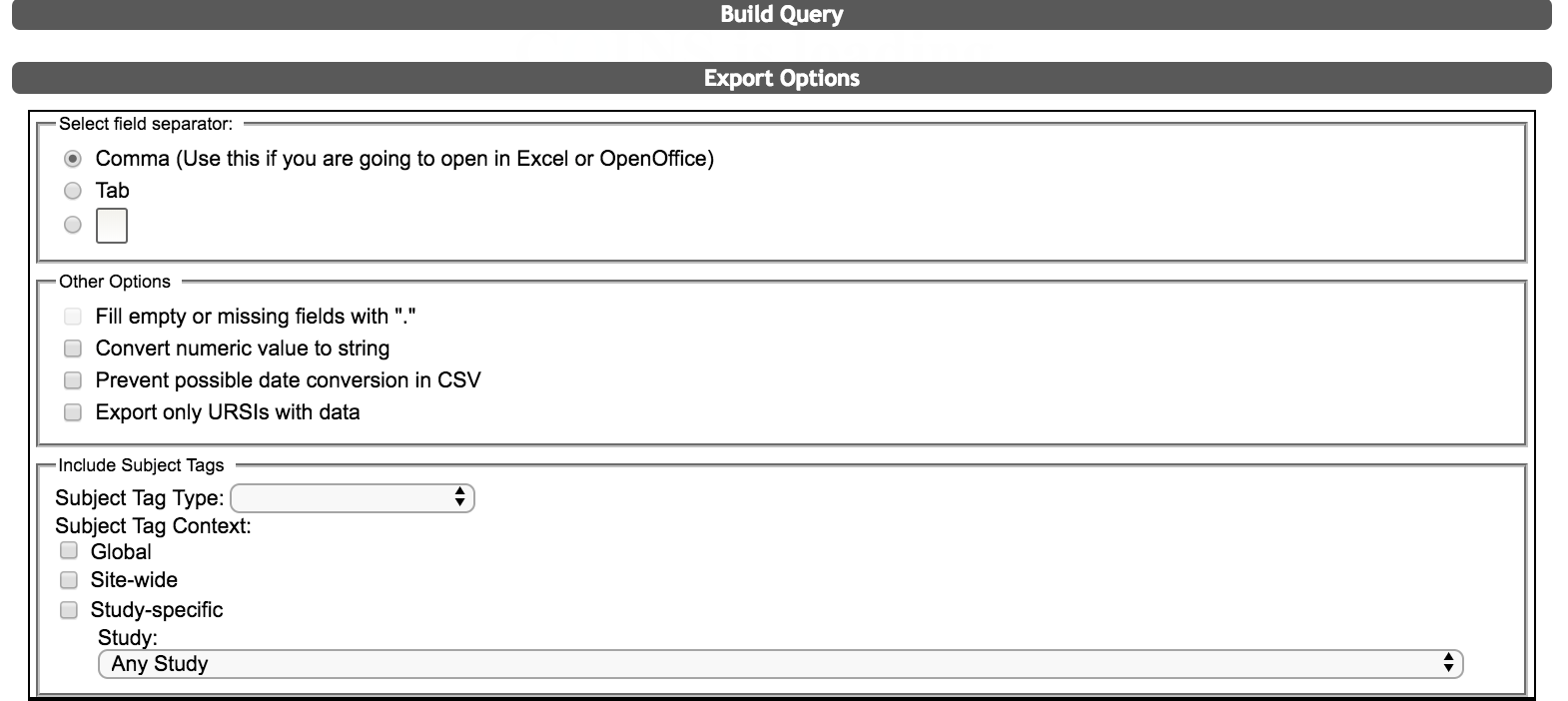
Basic Export Format Options
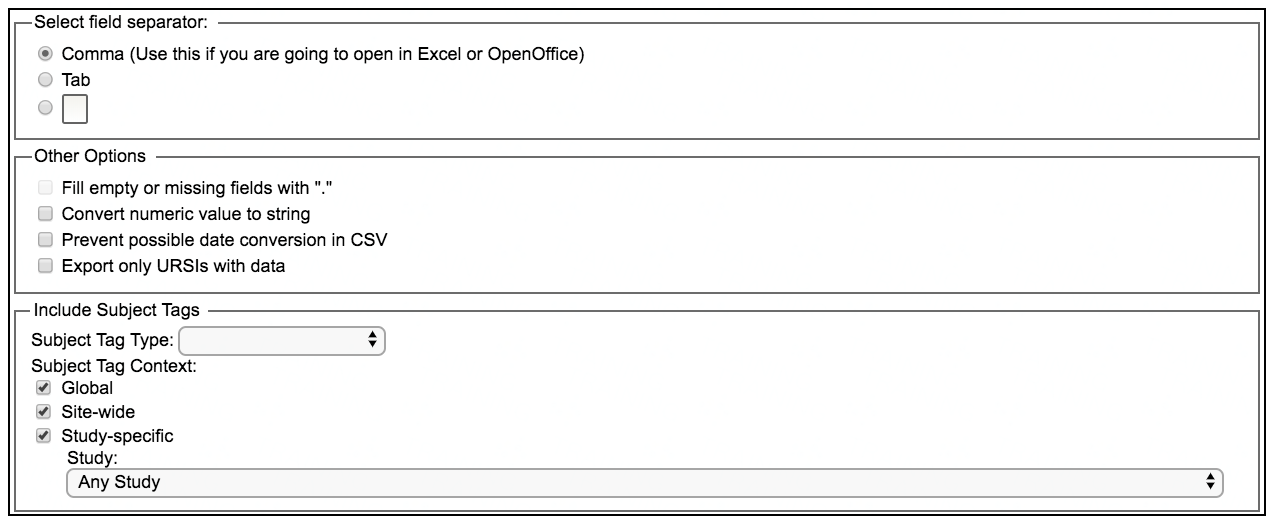
When exporting Assessment data, you can choose the field separator and exporting only URSIs with data. For numbers that have dashes, you can also prevent them from converting into dates (ex. 5-7 converts into May-7). Exporting only URSIs with data is helpful if the subject list that you queried with is large. Exporting data empty fields with a period is not a selectable option for the High Volume Export, but can be used with the Legacy Export.
Additionally, you can choose to include Subject Tags in the export. When exporting Subject Tags, you will be required to chose the Subject Tag Type, Subject Tag Context and the Study. Note: There will be no subject tag export options for queries using anonymization IDs.
Assessment Options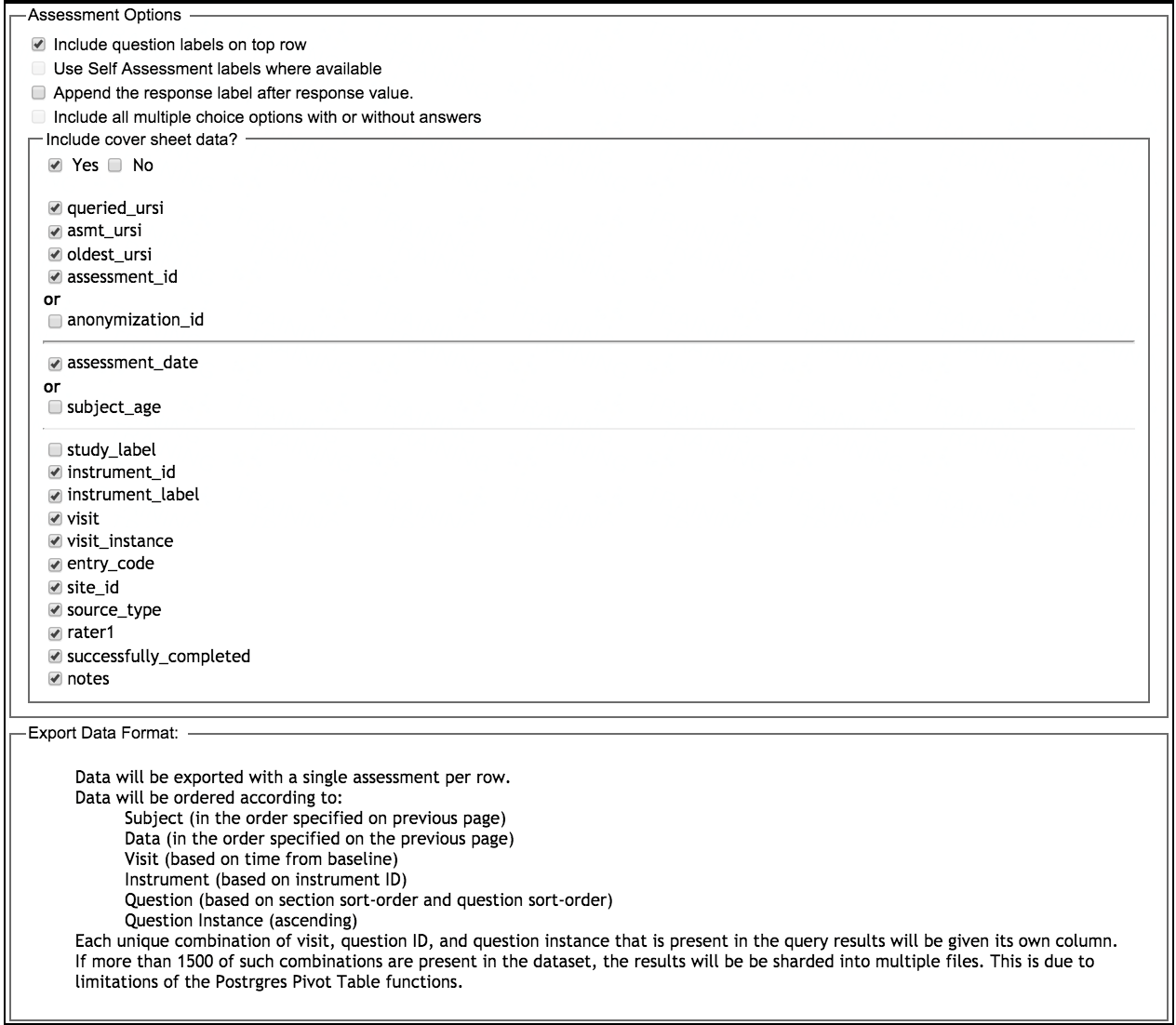
In this section, you will be given the following options:
- Include question labels on top row - this will print out the question text for each question queried in the exported csv. If this is unselected, the export will only contain the question IDs
- Append the response label after the response value - this will export the response stored numeric value as well as the label associated with the value
- Include cover sheet data? - if you select Yes, you will be able to choose which cover sheet data you want included by clicking the checkboxes next to the following items:
- URSI or Anonymization ID - if you choose to query your data using URSIs, you will not be given the option to export your data by anonymization ID. If you are querying your data by URSI, you can choose queried ursi, asmt ursi, oldest ursi, and/or assessment id. If you choose to query your data using anonymization id, you will not be given the option to export your data by URSI.
- Assessment date or subject age
- Study label
- Instrument id
- Instrument label
- Visit
- Visit instance
- Entry code
- Site id
- Source type
- Rater1
- Successfully completed
- Notes
Note: Self Assessment labels and include multiple choice options are only available through the Legacy Export.
Export Format
The High Volume export will be in the following format:
- Data will be exported with a single assessment per row
- Data will be ordered according to:
- Subject (in the order specified on previous page)
- Data (in the order specified on the previous page)
- Visit (based on time from baseline)
- Instrument (based on instrument ID)
- Question (based on section sort-order and question sort-order)
- Question Instance (ascending)
- Each unique combination of visit, question ID, and question instance that is present in the query results will be given its own column
- If more than 1500 of such combinations are present in the data set, the results will be separated into multiple files. This is due to limitations of the Postgres Pivot Table functions.
Export and Logging
Click Begin Export to start exporting a zip file that includes your data. As data is exported, real-time feedback will be given through the export log. Click Cancel Export at any time to stop the query.
Comments