To add a scan session that was not automatically transferred from a Dicom receiver, click Add A Scan Session under the Imaging menu.
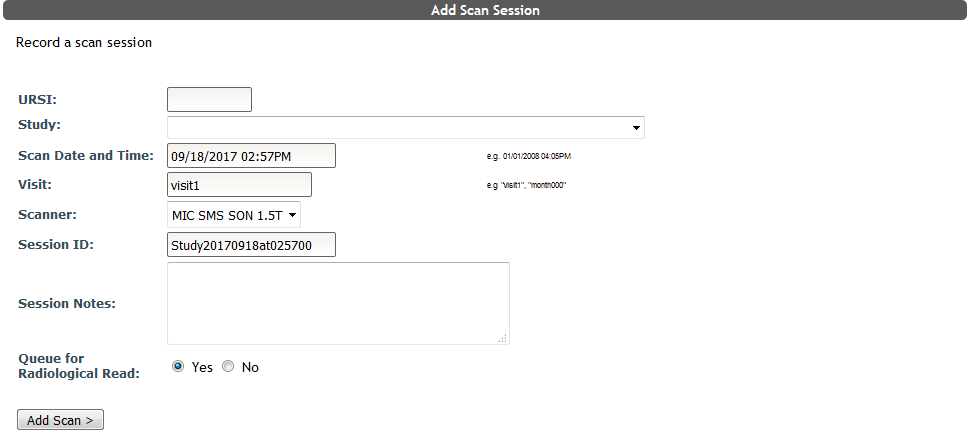
Here you will need to complete the following fields to manually add a scan session:
- URSI
- Study - choose from your list of studies in the drop down menu
- Scan Date and Time - current date and time is automatically populated (e.g. 01/01/2008 04:05PM) and can be adjusted to reflect your scan's date and time
- Visit - "visit1" is automatically populated, but can be adjusted to reflect your scan's proper visit (e.g. "month000")
- Scanner - choose the proper scanner from the drop down list
- Session ID - this session ID is created from the scan's date and time, the current date and time is automatically populated and should be adjusted to reflect the scan's proper date and time
- Session Note - any relevant notes can be added here
- Queue for Radiological Review - choose if the scan needs to be reviewed by a radiologist by selecting Yes or No
When all the information has been completed, select Add Scan>. You will be asked to review your scan information prior to adding the scan.
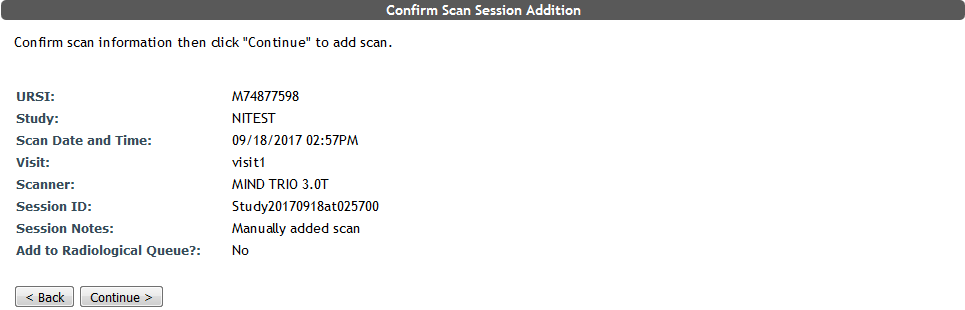
Confirm the scan information by clicking Continue>. Select <Back to make edits or cancel adding the scan. If the URSI is not enrolled in the study you are attempting to add the scan to, you will be told, "URSI not enrolled in selected study. Enroll the subject in the study then return to resume this scan." If the scan was successfully added you will be prompted with this information.

Now click Edit Series to add individual runs.
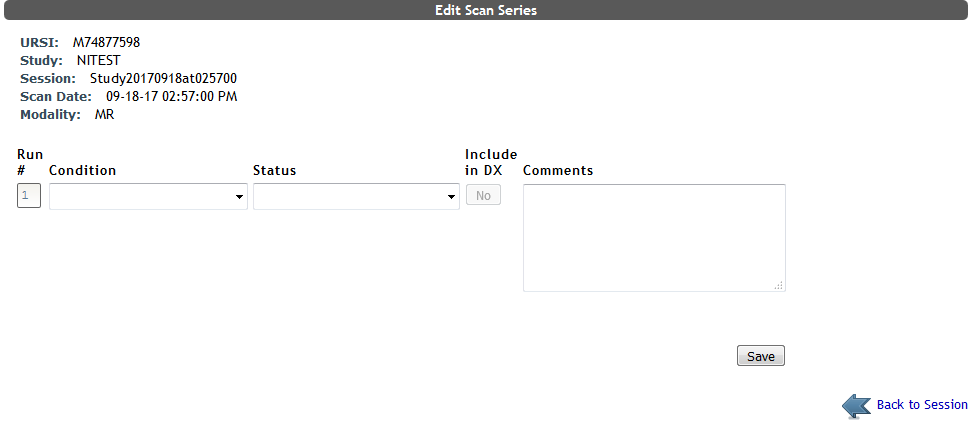
From this Edit Scan Series page you can add key details from the scan.
- Run # - the order the run was in the scan
- Condition - choose from possible scan protocols from a drop down list
- Status - choose the status of the run from a drop down list
- Completed – No problems
- Completed – Problems
- Incomplete
- Include in DX - toggle the Yes/No button to include the scan in Data Exchange (study sharing permission permitting)
- Comments
Click Save to add the run. Continue to do this until all of the runs for the scan have been added.
Comments