Charge codes can be used to bill scan time and scan session items.
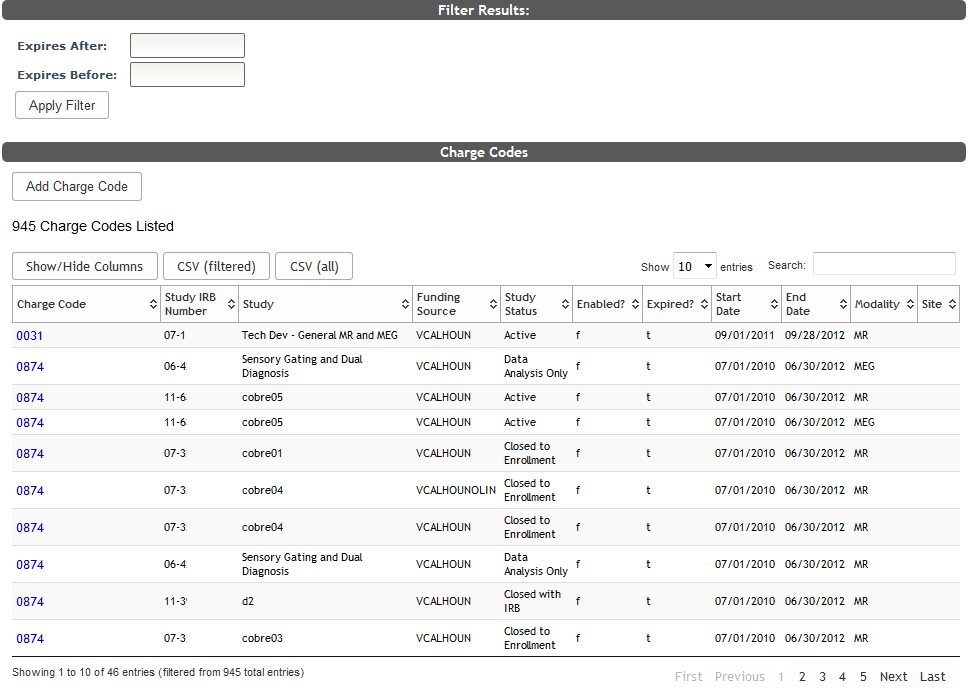
Go to List Charge Codes from the Billing menu. On this page you will find all of the charge codes.
List and Search
To filter by date use the Expires Before and Expires After date inputs and click Apply Filter.
Use the table's Search box to filter to the desired charge code(s).
Add Charge Code
To add a new charge code, click Add Charge Code.
Complete the fields shown. Scan sessions collected outside of the Effective and Expiration dates will not be billable with the charge code. Only allow scan credit billing will limit the charge code to only bill scan credits. Session charges (e.g., tech credits, oxygen, contrast, etc.) will not be billable if this option is enabled. Click Add Charge Code to add the code or View All Charge Codes to go back. After adding the charge code it will be available to associate with studies and sites.
Add study to charge code
Click Add Study after creating a new charge code or after clicking the charge code link to edit.
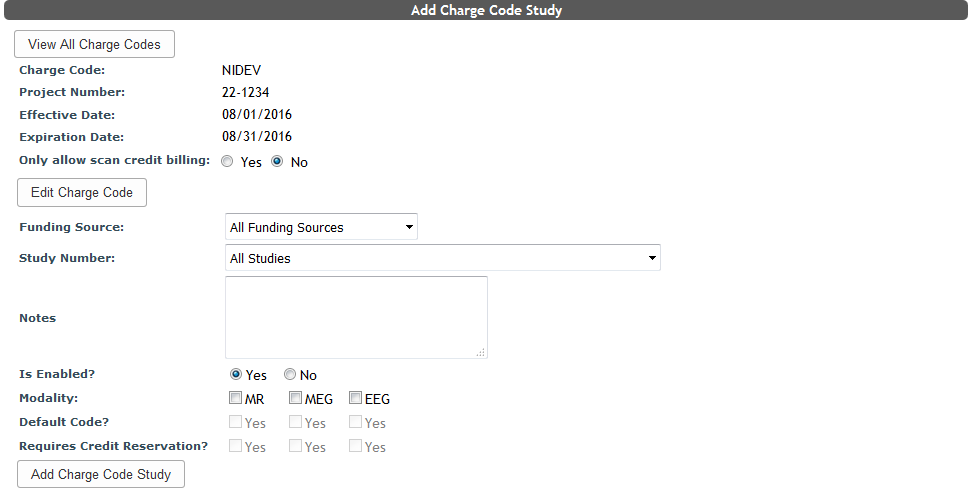
otherwise you can fill out the information on the form and click Add Charge Code Study when you are done.
Click Edit Charge Code to return to the previous page to make edits,
View and Edit Charge Code
Click on the charge code link in the Charge Code column to view the details.
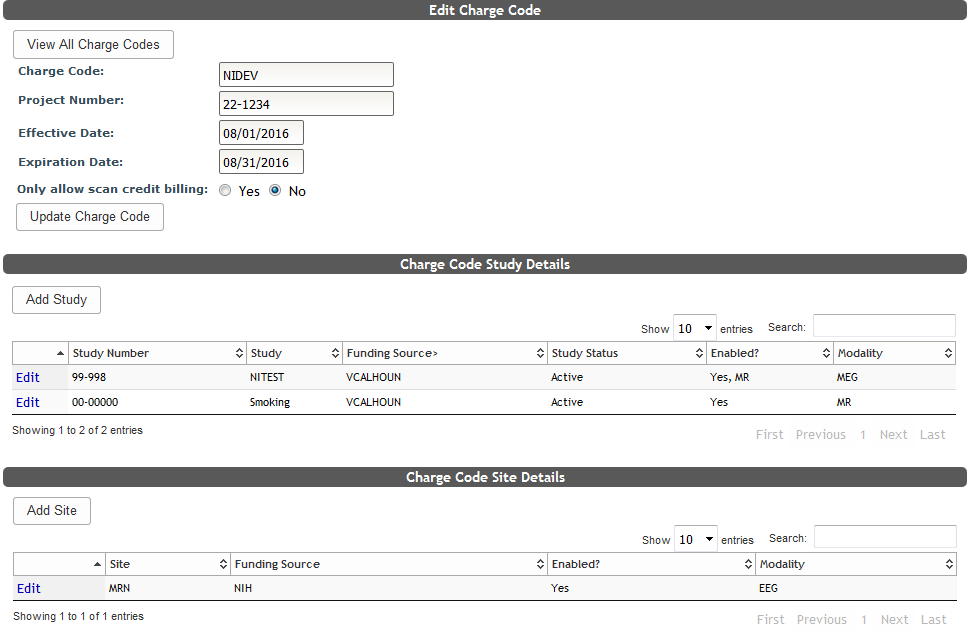
From here you can also add a study-wide code by clicking Add Study or you can add a site-wide charge code by clicking Add Site (see below for more info on both).
From the list of charge codes, click Edit next to a charge code to change the details. From here you can also add a study-wide code by clicking Add Study or you can add a site-wide charge code by clicking Add Site.
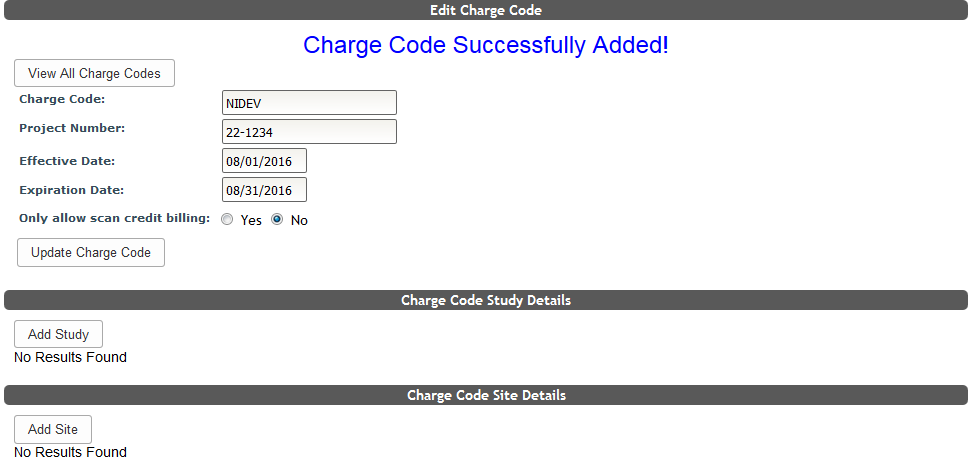
To make any changes correct the necessary fields then click Update Charge Code. Now that the code has been added, studies and sites can be associated with it.
Add a Study
Add a Site
To add a site to a charge code click Add Site.
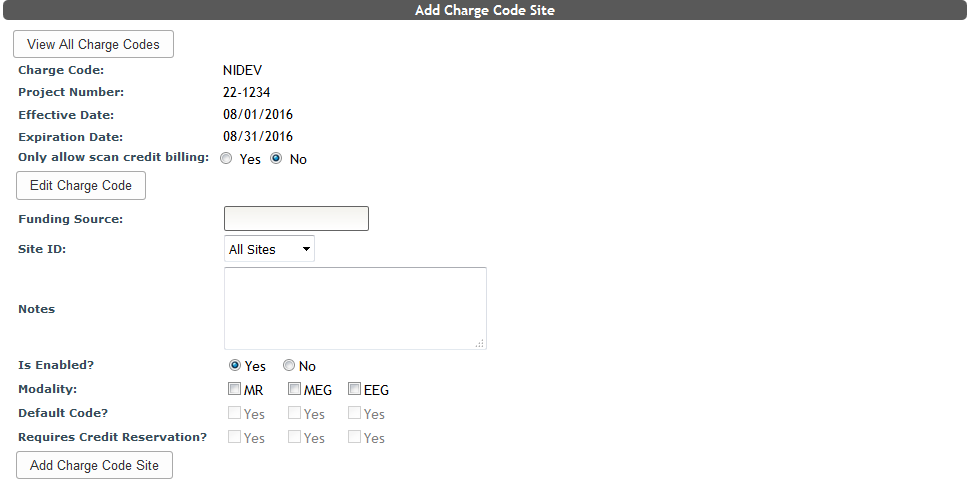
From this page you can also click Edit Charge Code to return to the previous page to make edits, otherwise you can fill out the information on the form and click Add Charge Code Site when you are done.
Any studies or sites added will be visible from the charge code's edit page. Click Edit next to any study or site code to change its details.
Comments